Copy from a Inventory item


This option will open a Inventory screen with the necessary data from a selected Inventory item. Before you can create the new Inventory item with the copied data, you need to at least enter a Inventory code and Save it. You may enter and / or select the options for the blank fields, as necessary. If necessary you may also edit or change any of the copied data.
|
The data that will be copied from a selected Inventory item, may depend on the on the Inventory item type. |
To create a new inventory item - Copy from item:
1.On the Action ribbon, select Inventory items (F12). TheInventory item - List view - Default screen will be displayed.
2.Select the Inventory item from the list.
|
You may right-click and select the Copy → Inventory item from the context menu. |
3.Make absolutely sure that it is the correct Inventory item to be copied.
|
To view more details of the selected Inventory item, you may: •Click on the Edit button - or double-click on the selected inventory item. •Use the horizontal scroll bar to view the data of the selected inventory items in columns. |
4.Click on the Copy from item button. The Inventory item screen with basically all the data from the selected Inventory item screen will be displayed as follows: 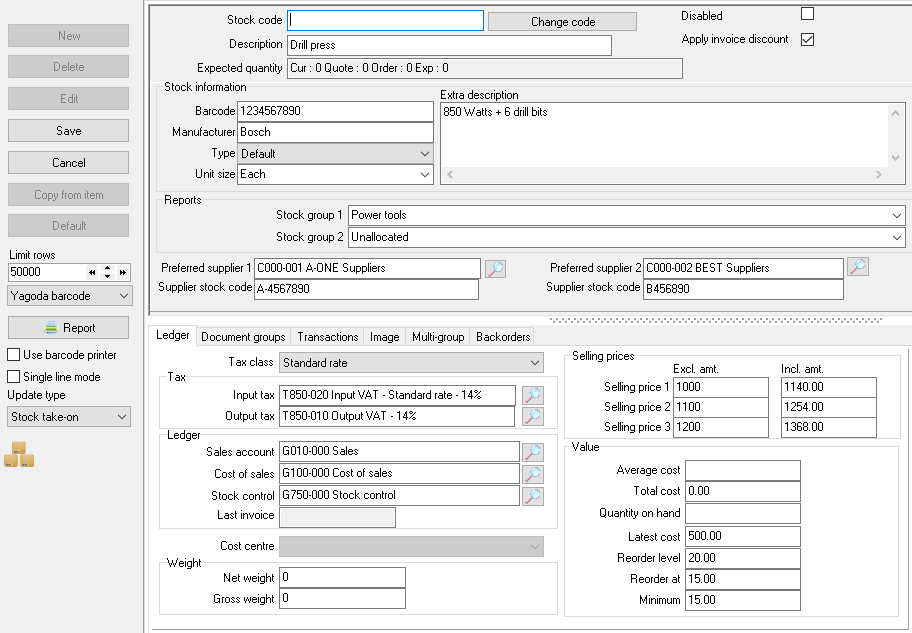
5.Enter the new Inventory code.
6.Enter the necessary details in the fields, as required. You may also edit the copied data, where necessary.
7.Click on the Save button to save this inventory item. TheInventory item - List view - Default screen will be displayed.
|
It copy the following fields : •Manufacturer •Type •Unit size •Apply invoice discount tick •Reorder level •Reorder at •Minimum •Groups •Input Tax accounts •Output Tax accounts •Weight (Net and Gross) •Ledger oSales account oCost of sales account oInventory control account oPreferred supplier 1 account oPreferred supplier 2 account |
|
What it does not copy: •Inventory code •Description •Barcode •Extra description •Selling prices 1/2/3 •Ledger oAverage cost oTotal cost oLatest cost oQuantity on hand oLast invoice •Document groups •Transactions •Extra (does not copy the correct image but the default image) •Multigroup •Descriptions (Language) (copies the groups but not the Descriptions and the text. |
Created with the Personal Edition of HelpNDoc: Benefits of a Help Authoring Tool


