
Themes
By default, TurboCASH5.2 is installed in the Material theme. Select the Classic, Blue, Glass, Silver, Soft blue or VS2010 theme to be displayed in the program. These themes will display the icons from the Classic folder.
|
|
A new Material theme is implemented in TurboCASH5.2. |

|
|
See video on Themes. The values for the themes are set in the colors.ini file in the themes folder. |

Experiment by selecting different themes until you find the one you like.
For most of these themes, the icons on the ribbons and screens will also change to blend with the selected theme.
If another Set of Books is opened, the theme that was selected in that Set of Books is displayed.
|
|
The “Material” theme is used for screen captures in this documentation. |
|
|
You may change the default Background1.jpg with your own image (photo, logo, products), etc. |
Select a theme
To select a theme:
- On the Setup ribbon, select Theme and select the theme of your choice.
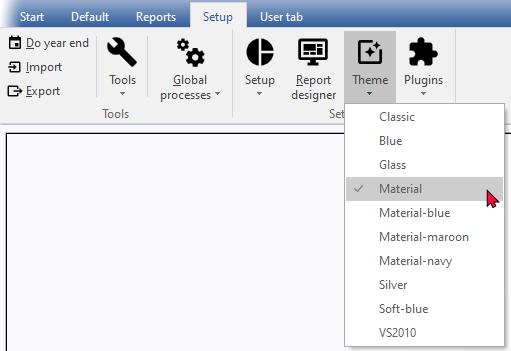
- Select the theme you like the best. The program will display the selected matching icon set.