
Copy from Set of Books
This option allows you to copy the all data (settings, master files (i.e. accounts, debtors, creditors, stock items), transactions in batches (posted and unposted), documents (updated or not updated), budgets, repeating transactions, user reports, etc.) into the Set of Books from which this feature is initiated.
This feature will import all the data into a current Set of Books. It will replace all the files in the active (opened) Set of Books from which the Copy from Set of Books option was initiated, with that of the selected Set of Books. This facility will create 2 identical Sets of Books on your system. The data, reports, etc., will be exactly the same for both the Sets of Books (copied from and copied into).
|
|
Should you wish to create a new Set of Books, you may use the following options on the Start ribbon tab:
|

|
|
This operation cannot be undone. Once you have copied another Set of Books into the active (opened) Set of Books, all existing data will be lost and replaced with new data. Before you start to use this facility, it is advisable to -
|

To copy data from another Set of Books:
- On the Setup ribbon, select Global processes → Copy from Set of Books. The following confirmation screen is displayed:
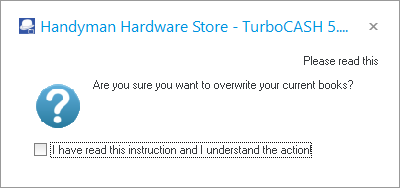
- If you are absolutely sure, tick the "I have read this instruction and understand the action!" field. The Yes and No buttons will be available on this screen.
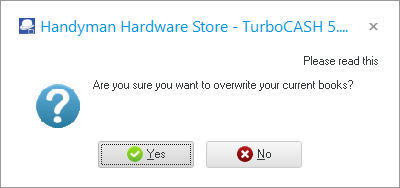
- Click on the Yes button only if you are absolutely sure.
|
|
On this screen you have the last chance to cancel the clearing process. If you click on the No button, the process will be terminated. |

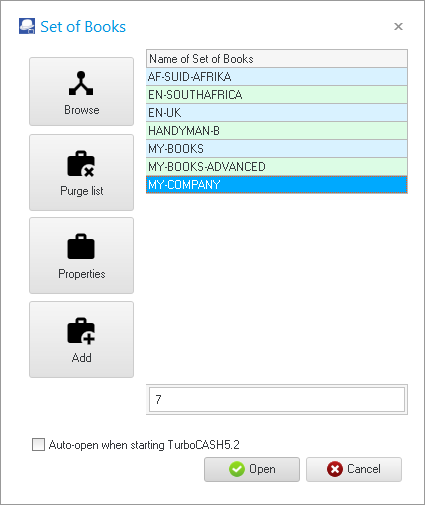
- Click on the Yes button to replace all the data in the open (active) Set of Books. The Set of Books screen (the same screen as the one to Open a Set of Books) is displayed:
|
|
If a Set of Books is not located in the .../books or other directory where TurboCASH5.2 is installed, (elsewhere on your system) the name of the Set of Books is displayed in a blue colour. |

- Select the Set of Books which you would like to copy the data from.
|
|
If the Set of Books you need to copy from, is not listed on the Set of Books screen, click on the Browse icon to select from any other Directory. |
|
|
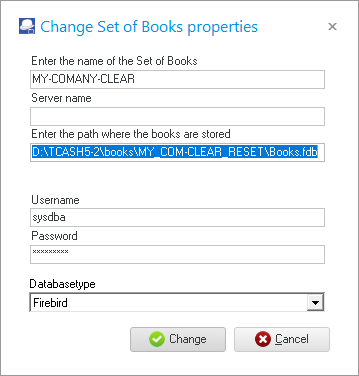
You may click on the Properties icon to view the holding Directory for the Set of Books selected on the list. If you click on the Properties icon, the following screen is displayed:
Once done, click on the Cancel button to close (exit) this screen. |
- Click on the Open button. All the data in the selected Set of Books will be imported (replace all existing data) into the Set of Books you are working in.
|
|
Once this process is finished, it is recommended that: -
|