Create backorders to deliver
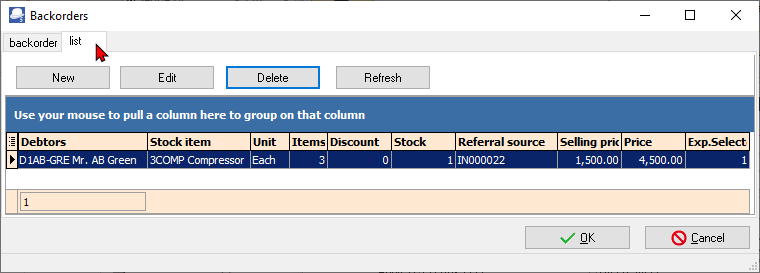
When processing documents, and there are any Backorders outstanding, a list of Backorders will be displayed.

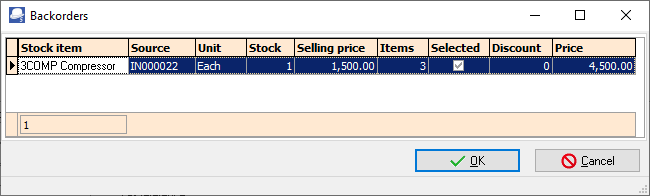
You may select the item on the list and the quantities (in the Items) will be added to the document lines and will be removed from this list.
Backorders to deliver - Invoices
If an outstanding backorder exists for a debtor (customer / supplier account), you may use this option to create a new Invoice for the outstanding backorders to deliver.
To create backorders to deliver:
- Select the "Invoices" document type.
- Select the document to create backorders to deliver.
- Right-click and select Documents → Backorders to deliver option on the context menu. A new Invoice will be created.
- You may need to edit the Invoice.

|
|
WARNING - Input Tax / Output tax In the case of Invoices, the Input tax is used instead of the Output tax. You need to check this, and change it to the Output Tax. |

The Invoice will reflect the Selling prices and the quantities as it was on the Backorders. The stock item will be removed from the Backorders screen as well as on the Backorders tabs for the Stock item and the Backorders tab of the Debtor (customer / client) account.
You may click on the Backorder icon and select another stock item to add to the Invoice.
Backorders to deliver - Quotes
|
|
WARNING - INVOICE under Quotes document type This process is not recommended, as it will create an Invoice on the Quotes document type.
|

To create an Invoice from the Quotes document type for Backorders to deliver:
To create backorders to deliver:
- Select the "Quotes" document type.
- Select the document to create backorders to deliver.
- Right-click and select Documents → Backorders to deliver option on the context menu. A new Invoice will be created in the Quotes document type.
- You may need to edit the Invoice / Quote.

|
|
WARNING - Input Tax / Output tax In the case of Invoices, the Input tax is used instead of the Output tax. You need to check this, and change it to the Output Tax. |
The Add to backorder icon is added (after the Backorder icon.
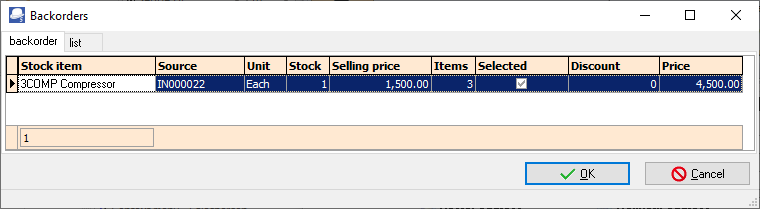
This will list the Outstanding items on Backorder. You may click on the list tab to view a list of the debtor (customer / client) accounts.