
Stock items - Backorder tab
When processing invoices in Documents (Default ribbon), and the debtor (customer / client) orders more than is actually invoiced, it will be recorded in the backorder facility.
|
|
Backorder records and reports will only be updated when the Invoices are posted (updated) to the ledger. |

An example where the quantity entered in the “Qty Order” field is more than the quantity entered in the “Qty Ship” field, is as follows:

|
|
You may also click on the Backorder icon to edit backorders when processing invoices and quotes. |

The insufficient quantities (e.g. 10 – 1 = 9, as per this example) will be added to the backorder feature. The following options, on the Default ribbon, are available to manage (view / add / edit / delete) backorders:
- Stock items (Backorders tab) – List of backorders for the selected stock item.
- Debtors (Backorders tab) – List of backorders for the selected debtor (customer / client) account.
- Input → Backorders Outstanding – List of backorders for all stock items.
The Backorder report may be printed in Reports → Stock → Backorder (Reports ribbon) This will launch the Backorders options screen on which you may select the range of Stock items to include / exclude from the report.


When processing Invoices and you select the Stock item on backorder, the invoicing screen, the Backorders Outstanding screen is displayed:
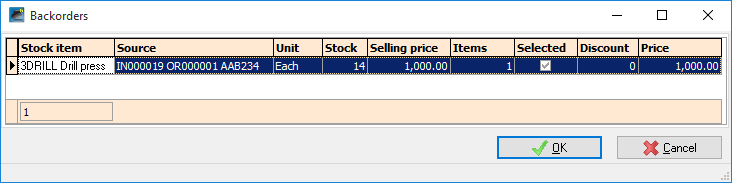
If you select this item, the entry will be removed from the backorder records and reports.