
Voorraad
These options allows you to locate or find specific stock items on the fly.
Type
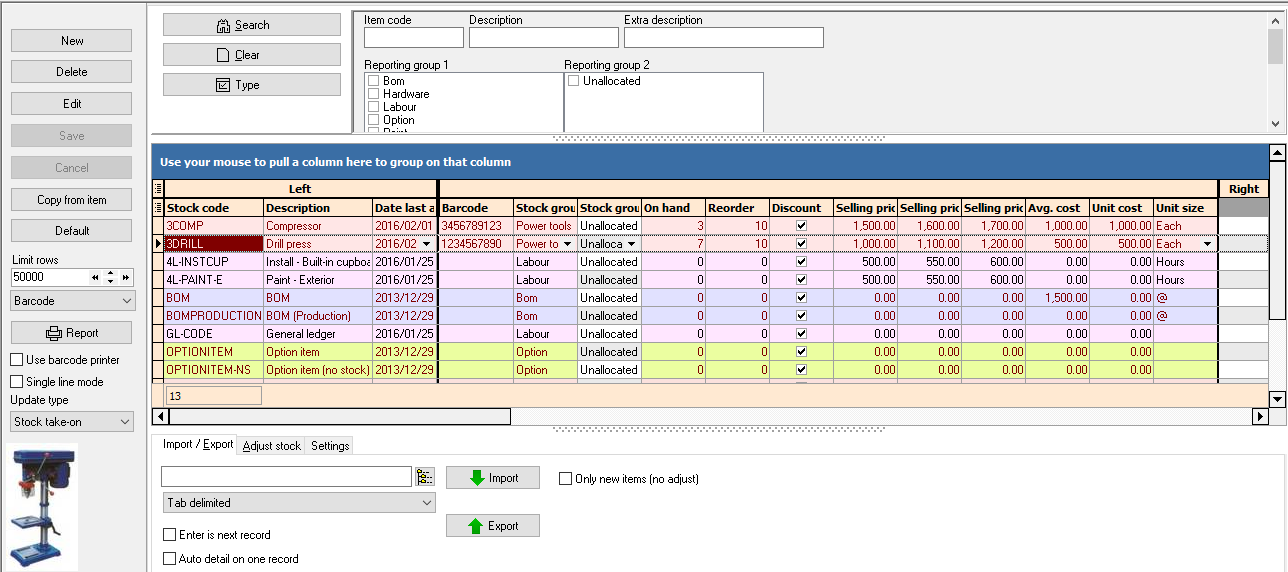
You may enter or search for a stock item
•Item code - enter a valid item code.
•Description - Enter a description or part of the description.
•Extra description - Enter a extra description or part of the extra description.
•Reporting group 1 / 2 - All stock item groups as set in Groups (Setup ribbon) will be listed. Select (tick) to list only those stock items.
•Creditor - If preferred suppliers is selected on stock items, you may lookup a creditor to view only those stock items linked to a supplier.
Column headings
All the data for each of your stock items are listed in columns. To view change the sequence in which the data is displayed, you may:
•Scroll bars - Scroll to the right or to the left on the horizontal scroll bar to view the information.
•Sequence of rows - Click on any of the column headings to change the sorting sequence of the documents listed in the descending or ascending sequence.
•Sequence of columns - Click on a column heading and drag it to the right or to the left to change the sequence in which the columns need to be displayed.
|
|
The "Line count" will show the number of records (stock items) that matches your search or filter criteria. |

|
|
You may also search for stock items in the Investigator screen (Setup → Search). |
|
|
The column headings are grouped into three (3) bands: •Left - Click on a column and drag the column to the desired position. •Data - You may also drag it to the right band or to the left band. •Right - By default this band is empty. Any number of columns can be dragged to that band. |