
Creditor accounts - Delivery address tab
1.The Delivery address tab is the default when accessing the Edit → Creditors screen.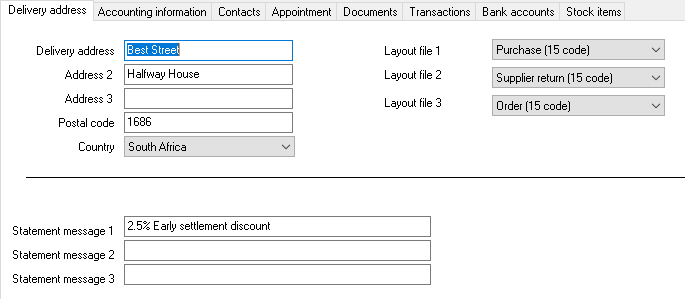
2.Enter and / or select the following on the "Delivery address" tab, if necessary:
a)Delivery address, Address 2, Address 3 - Enter up to 3 address lines.
b)Postal code - Enter the postal code.
c)Country - Default is Empty. You may select the Country.
d)Message, Message 1, Message 2 and Message 3 - Enter the message for the creditor (supplier / vendor) account. This message will be displayed on Remittance advises generated on the Reports → Creditors → Outstanding - Remittance advises menu.
e)Layout Files
|
|
If no layout files have been selected for the creditor (supplier / vendor) on this tab, the default settings as set for Purchases, Supplier returns and Orders (Setup → System parameters → Documents menu) will be used. |

i)Layout file 1 – Purchase - Layout file - If you have a specific purchase layout file for the this creditor (supplier / vendor), you may select it.
ii)Layout file 2 – Supplier returns - Layout file - If you have a specific Supplier returns layout file for the this creditor (supplier / vendor), you may select it.
iii)Layout file 3 – Order - Layout file - If you have a specific Order layout file for the this creditor (supplier / vendor), you may select it.
3.Click on the Accounting information tab to enter and select settings and accounting terms.
4.Once finished, click on the Save button.