Theme


You may choose between the "Classic" and "Ruby" themes.
Experiment by selecting different themes until you find the one you like.
For most of these themes, the icons on the ribbons and screens will also change to blend with the selected theme.
If another Set of Books is opened, the theme that was selected in that Set of Books is displayed.
|
The “Classic” theme is used for screen captures in this documentation. |
|
You may change the default Background1.jpg with your own image (photo, logo, products), etc. |
To select a theme:
1.On the Setup ribbon, select Setup → Theme and select the theme of your choice.

2.Select the theme you like the best. The program will display the selected background picture and its matching icon set.
|
Classic-large theme is also implemented in TurboCASH5. This is based on the Classic themes and displays the grids and data in larger fonts - this feature is intended for large screens. |
Examples "Documents" screens in the Classic large theme:

You may change the font to any required size and or set the colors of the grids. To do this, it is recommended that you make a copy of the classic-large folder and rename it.
The colors.ini file in the " ...\bin\Themes\classic" and "classic-large" folders are as follows.
Classic |
classic-large |
maincolor=16777215 mainpanelcolor=16777215 mainfontcolor=18 gridgroupcolor=10841658 gridbackcolor=16777215 gridbackfontcolor=0 gridgroupfontcolor=16777215 gridfontmaxsize=8 gridheadingcolor=13822463 gridheadingfontcolor=0 |
maincolor=16777215 mainpanelcolor=16777215 mainfontcolor=18 gridgroupcolor=10841658 gridbackcolor=16777215 gridbackfontcolor=0 gridgroupfontcolor=16777215 gridfontmaxsize=12 gridheadingcolor=13822463 gridheadingfontcolor=0 largefont=true lfto=120 lffrom=100 |
|
If any spaces at an end of a value in a line exists, it will not pick up any changes. |
The classic-large theme will use the icons from the classic theme (default). It does not need any icons, but at least 2 background.jpg files in it.
An example of changing the colors to the "Cyan", is as follows:

gridgroupcolor=10841658
gridheadingcolor=13822463
Adjusted to match new icon and splash screen colors
Gridgroupcolor=11296060
The 20 standard colors in the Windows pallet I as follows.
The color values are decimal values entered in the Colors.ini file.

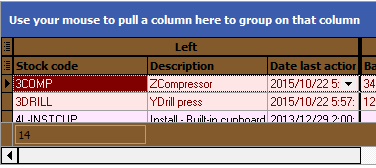
gridheadingcolor=762865
gridheadingfontcolor=16777215 (white)

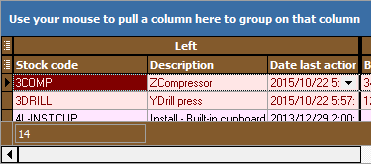
gridheadingcolor=2906755
gridheadingfontcolor=0 (black)
gridheadingfontcolor=0 (black)
gridheadingfontcolor=16777215 (white)
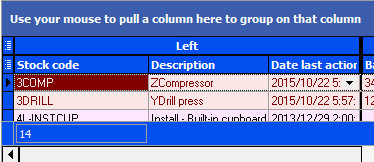
gridheadingcolor=15683329
gridheadingfontcolor=16777215 (white)
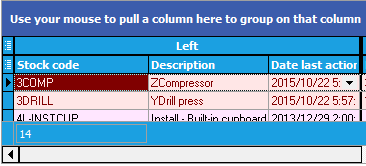
gridheadingcolor=295730
gridheadingfontcolor=16777215 (white)

gridheadingcolor=14786587
gridheadingfontcolor=16777215 (white)
gridheadingcolor=7471320
gridheadingfontcolor=16777215 (white)

gridheadingcolor=16711787
gridheadingfontcolor=16777215 (white)
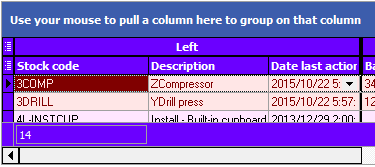
gridheadingcolor=115876
gridheadingfontcolor=16777215 (white)

gridheadingfontcolor=0 (black)

gridheadingcolor=1485151
gridheadingfontcolor=16777215 (white)
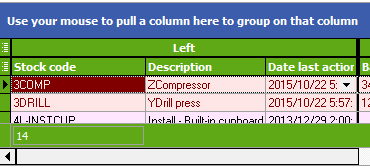
gridheadingcolor=35329
gridheadingfontcolor=16777215 (white)

gridheadingcolor=9133942
gridheadingfontcolor=16777215 (white)

gridheadingcolor=6784878
gridheadingfontcolor=16777215 (white)
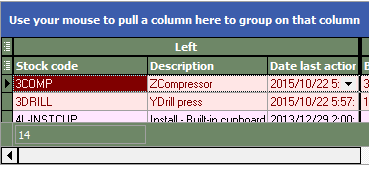
gridheadingcolor=92410
gridheadingfontcolor=16777215 (white)
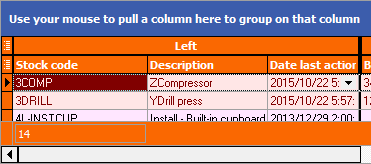
gridheadingcolor=13660917
gridheadingfontcolor=0 (black)

gridheadingcolor=5349
gridheadingfontcolor=16777215 (white)

gridheadingcolor=4012664
gridheadingfontcolor=16777215 (white)
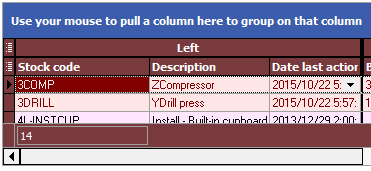
gridheadingcolor=9074277
gridheadingfontcolor=16777215 (white)
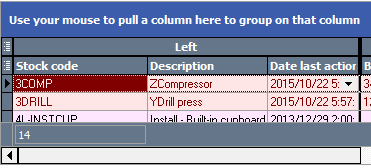
gridheadingcolor=11184897
gridheadingfontcolor=16777215 (white)
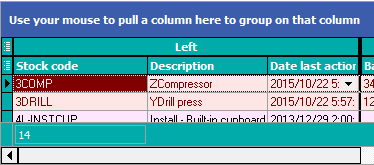
gridheadingcolor=16711850
gridheadingfontcolor=16777215 (white)
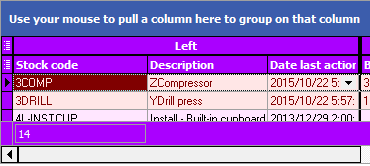
gridheadingcolor=114905
gridheadingfontcolor=0 (black)

Created with the Personal Edition of HelpNDoc: Free CHM Help documentation generator

