
Tax Inclusive / Exclusive - Documents
You may select to change the amounts to be displayed as exclusive or exclusive of Output VAT/GST/Sales Tax on all sales documents for debtors (customers / clients) (i.e. Invoices, Credit notes and Quotes) and exclusive or exclusive of Input VAT/GST/Sales Tax on all purchase documents for creditors (suppliers) (i.e. Purchase, Supplier returns and Orders).
The selling price amounts for debtor (customer / client) documents are automatically inserted in the documents when a stock item is selected.
|
|
Please take note of whether these selling prices are entered or adjusted Inclusive or Exclusive of VAT/GST/Sales Tax on Stock items (Default ribbon), or if you adjust the selling prices in the Input → Adjust stock menu (Selling prices tab) on the Default ribbon. |

The purchase (cost) price amounts for creditor (supplier / vendor) documents are automatically inserted in the documents when a stock item is selected.
|
|
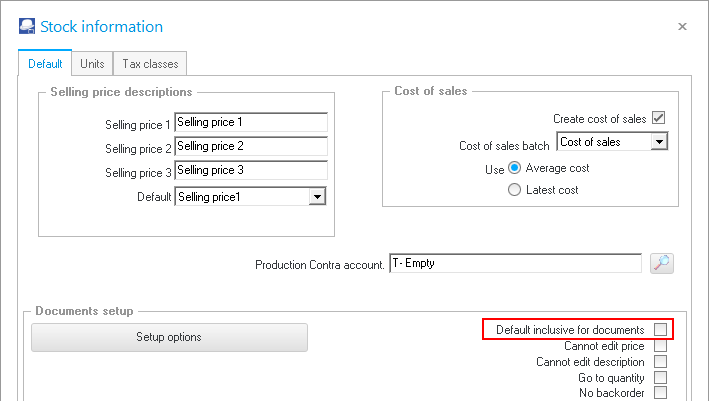
By default, the amounts are inserted or entered (if manually over-typed) Exclusive of VAT/GST/Sales Tax on the amount column of the document lines. To enter and view amounts Inclusive of VAT/GST/Sales Tax, you may select (tick) the "Default inclusive for documents" field option on Setup → Stock information menu (Setup ribbon). |

Tax Exclusive mode
To set the Exclusive of Tax (VAT/GST/Sales tax) mode:
- Click on the F7:Exclusive icon.
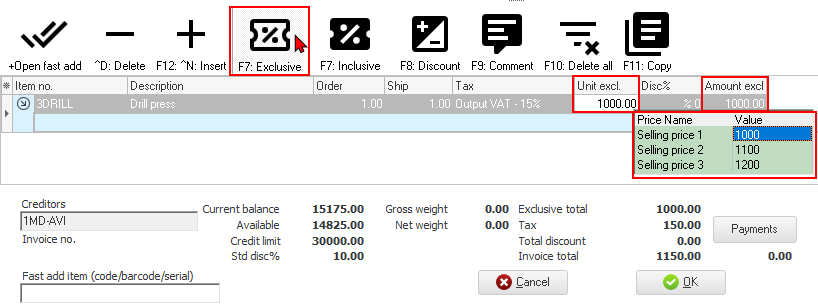
- The amount will change to the selected mode, and will be displayed in the transaction section, as well as at the bottom of the Document entry screen.
|
|
You may press the F7 key or click on the F7:Exclusive / F7:Inclusive icons on the "Document entry" screen for unposted documents to toggle between the Inclusive or Exclusive modes. |

Tax Inclusive mode
To set the Inclusive of Tax (VAT/GST/Sales tax) mode:
- Click on the F7:Inclusive icon.
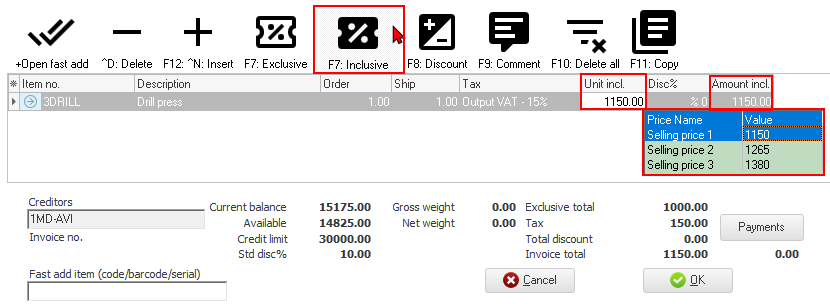
- The amount will change to the selected mode, and will be displayed in the transaction section, as well as at the bottom of the Document entry screen.