
Import General ledger accounts
This option will allow you to import data for Account records from a valid file format into an existing Set of Books.
To be able to import the data for Account records, you need to have created a valid XML Database file, TXF TurboCASH Data Exchange file, Lotus Spreadsheet file on your system in the Setup → Export menu.
To import accounts into TurboCASH5.2:
- On the Setup ribbon, select Import. The "Import Data into TurboCASH5.2" screen, is displayed:
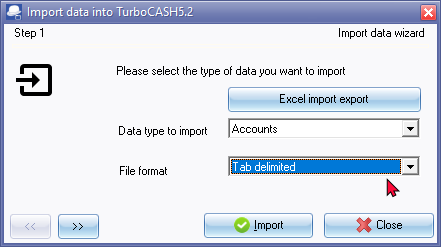
- Select Accounts as the "Data type to import", if not already displayed.
- Select one of the following file types in which the data to import, is saved on your system:
- Tab delimited (recommended)
- TurboCASH Exchange File (*.TXF)
- XML Database File (*.XML)
- Lotus Spreadsheet File (*.WK1)
- Click on the
 button to locate the data file. The following screen is displayed:
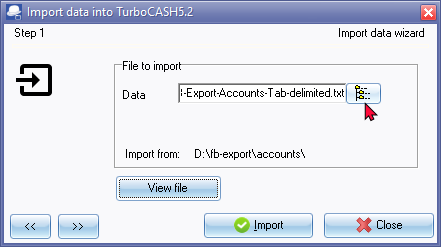
- Click on the
 button to locate the data file.
|
|
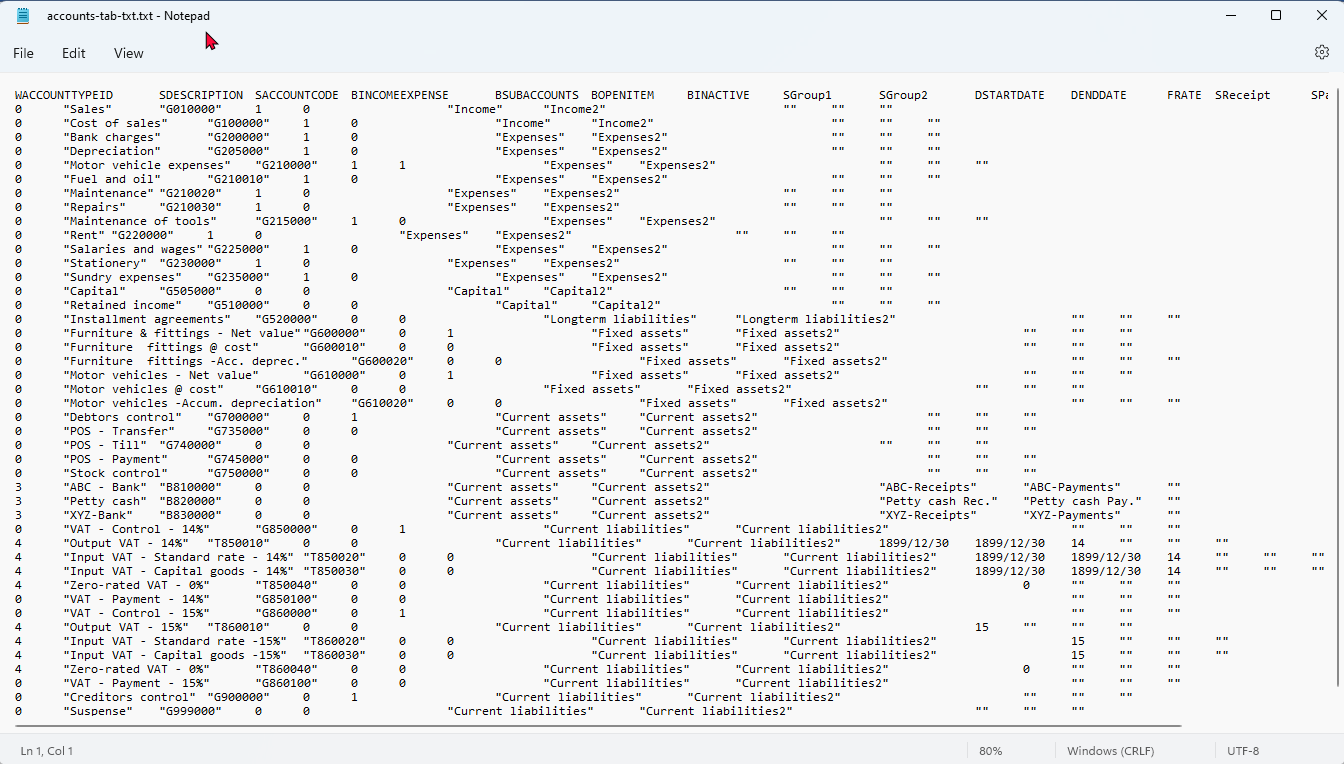
An example of the
|

- Click on the button. The following screen is displayed:
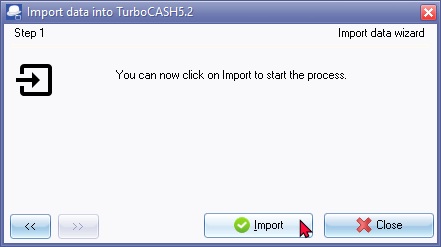
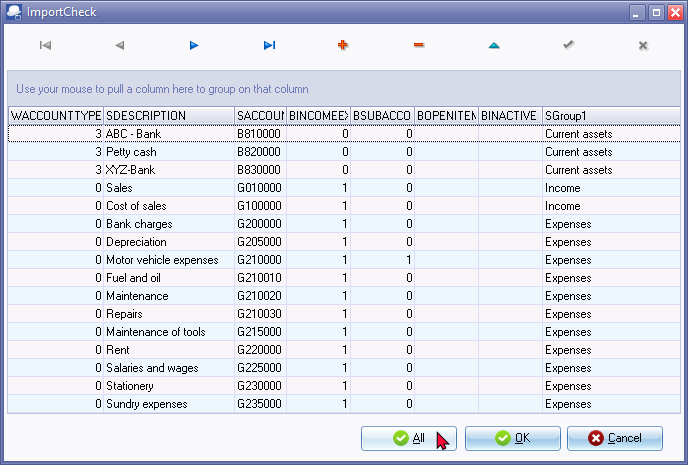
- Click on the Import button. The "ImportCheck" screen is displayed:
|
|
You may use the record buttons to add, delete or change the accounts on the "ImportCheck" screen. You may then click on the All or OK buttons to import the accounts. |

|
|
The values of the data in the "ImportCheck" screen, listing the general ledger accounts, is as follows:
|
|
|
BOPENITEM column is blank. All accounts for which the "Open item account" was set as "Yes" is set to "No" is blank. This will import any Open accounts as normal accounts. You may need to identify and set these accounts as a "Open item account". |

|
|
BINACTIVE column is blank. All accounts for which the "Status" is set to "Disabled" is blank. This will import any "Disabled (inactive) accounts as "Enabled" (active) accounts. You need to Delete these accounts; or set them as "Disabled" (inactive) after importing these accounts. |
|
|
Bank accounts - WACCOUNTTYPEID column is "3". If Bank accounts is imported, it will create Payments bathes and / or Receipt batches for each bank account depending on the Default bank reconciliation method setting (Setup - System parameters on the Setup ribbon). You may select to delete the Bank accounts on the "ImportCheck" screen. If these Bank accounts is not deleted on the "ImportCheck" screen, it will import the Bank accounts, as well as the Payments bathes and / or Receipt batches associated with each of the Bank accounts. You may then need to delete these Bank accounts, as well as its associated Payments bathes and / or Receipt batches associated with each of the Bank accounts and create (add) your own Bank accounts and associated Payments bathes and / or Receipt batches. |
- Once the import process is finished an information message will be displayed.
"Data file import completed!"
- Click on the OK button.
- Go to the Reports ribbon and select Reports → Ledger → Listing menu to check that the ledger accounts are correct.
|
|
Blocked accounts - If accounts status is set to disabled, these accounts will be imported. Note the status of disabled accounts is set to enabled. For example, if you have changed the Tax rates, and do not wish to use these old accounts, you may delete these accounts or disable them. The Reporting groups for Account groups 1 and Account group 2, will also be imported in the Setup Groups. |
- If you need to edit the ledger accounts, go to the Setup ribbon and select Accounts.
After Import
Disabled (Inactive) Accounts
If the status of Accounts were set as Disabled in the source Set of Books from which the Export file was exported, the Disabled accounts will be imported as "Enabled". You may need to:
- Delete the "Disabled" accounts, if you do not wish to keep these accounts; or
- Keep the Status of these Accounts as "Enabled" (active); or set the Status of these Accounts as "Disabled" (inactive).
Tax (VAT/GST/Sales tax) Accounts / Codes
It is important to check the Tax (VAT/GST/Sales tax accounts and Tax percentages, before you process any transactions in batches and / or documents.
Recreate Tax (VAT/GST/Sales tax codes with missing Tax tab
The Tax tab on the first Tax code (e.g. Output VAT - 14% (T850010) and Output VAT - 15% (T850010) is missing after Import.
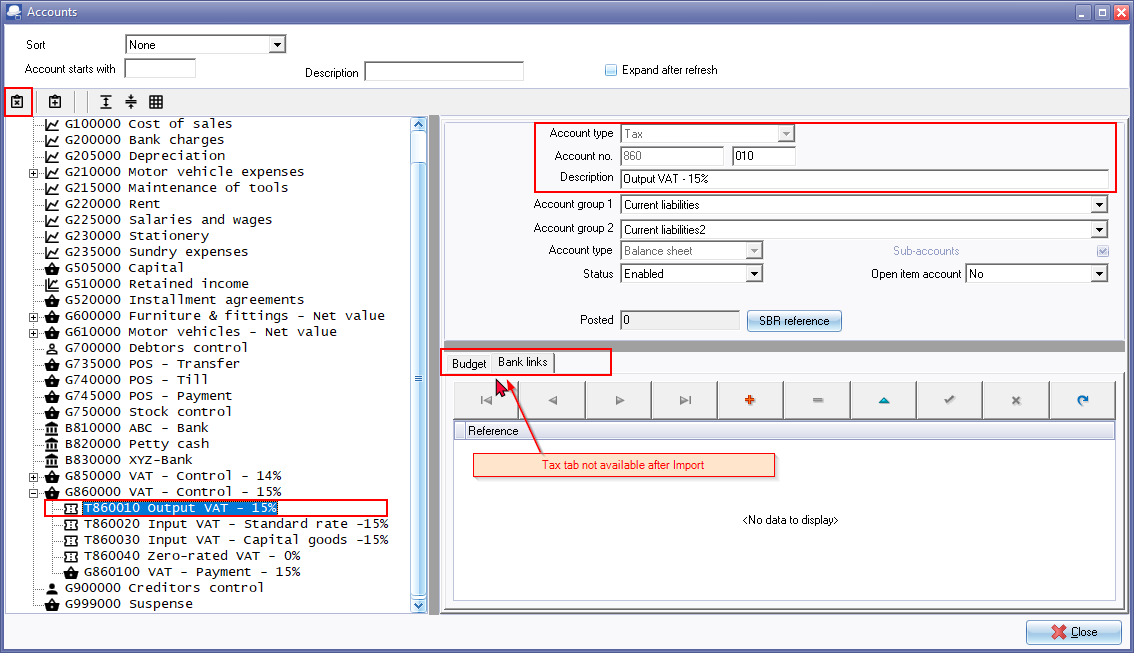
Select the Tax code (e.g. T860010) and Copy the Description e.g. Output VAT - 15%) to your clipboard.
Click on the Delete  icon.
icon.
Select the Tax control account (e.g. VAT - Control - Output VAT - 15%) (main account).
Click on the Add  icon.
icon.
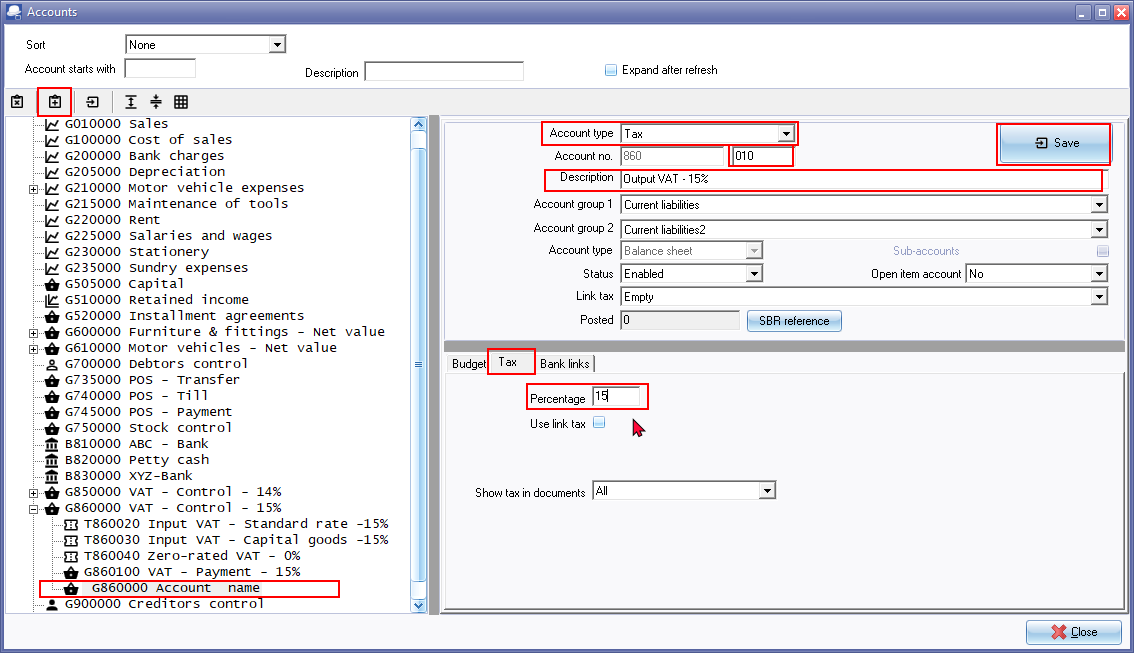
A new Ledger account will be added. Select the following:
Account type - Select Tax.
Account number - Change the "000" in the Sub-account section with "010". You may use the same sub account code as the deleted Tax account.
Description - Enter the name of your Output tax account (or paste from your clipboard).
On the Tax tab, enter the Tax percentage (e.g. 15) and click on the Save button.
Zero -rated Tax (VAT/GST/Sales tax) accounts - Confirm Zero percentage
Zero- rated Tax (VAT/GST/Sales tax) with a Tax percentage of "0%" may be blank.
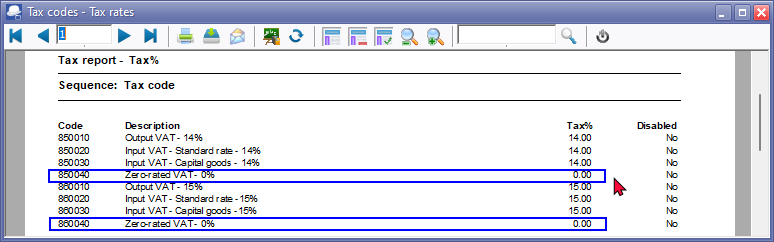
On the Tax codes - Tax rates report (User reports -> Tax on the Reports ribbon), Tax percentages with a zero-rate will be Imported as a blank percentage.
This may cause the Zero rated Tax (VAT/GST/Sales tax) selected in processing transactions in Batches and / or Documents not to display correctly on Tax reports.
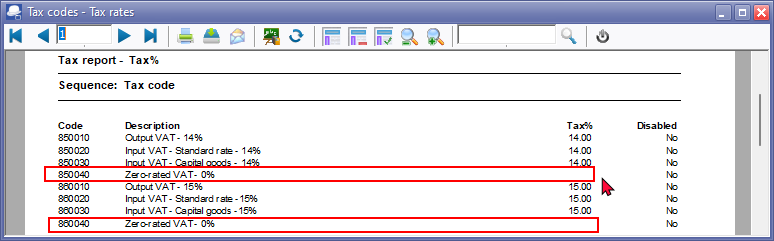
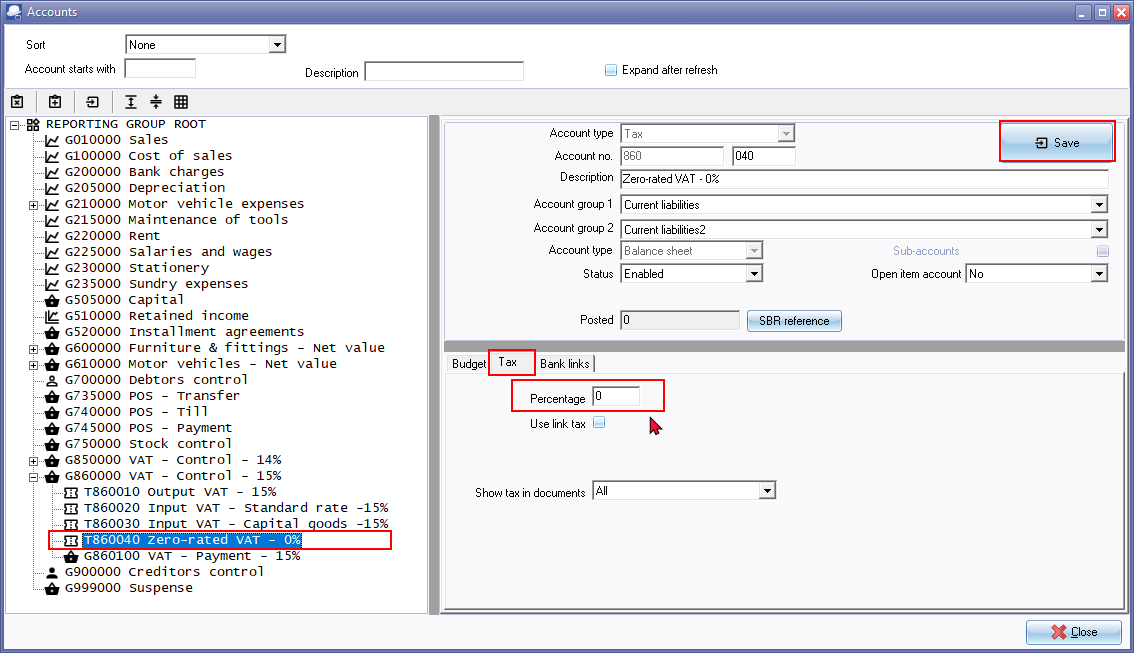
To fix this; select the Zero-rated Tax (VAT//GST/Sales tax) account.
Overtype the Tax percentage with "0"
After confirming Zero-rated "0" tax percentages (tax rates) the Tax rates should be correctly listed as "0" percentage.
Delete / Add Bank Accounts
If Bank accounts is imported, it will create a Payments batch/ Receipts batch for each Bank account / Petty Cash account.
It is recommended that the Bank Accounts, as well as the Imported batch types be deleted and recreated.