
Export / Import batch transactions
This option will allow you to export transactions in a batch into a spreadsheet. You may then add new transactions, edit existing transactions, etc.
You may then save it and import it into the batch.
|
|
These accounts (Chart of Accounts) are maintained in Setup → Accounts (Setup ribbon). Reports for the accounts (Chart of Accounts) are printed in Reports → Ledger → Listing - Chart of Accounts (Reports ribbon). Before using this feature, it is recommended to print the report. If you make any changes in the Excel spreadsheet, and Import it, these changes will be reflected. |

To select and open a batch:
- On the Default ribbon, select Batch entry (F2).
- Select a batch type, and click Open.
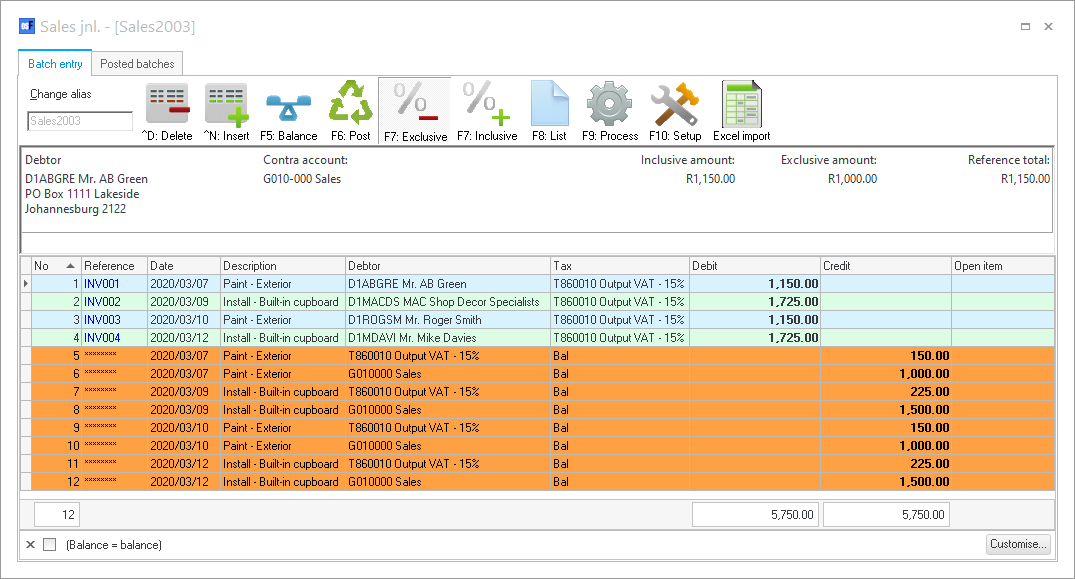
- Click on the Excel import icon. The "Data Import Export" will import all the transactions (excluding the balancing transactions, if the batch is already balanced).
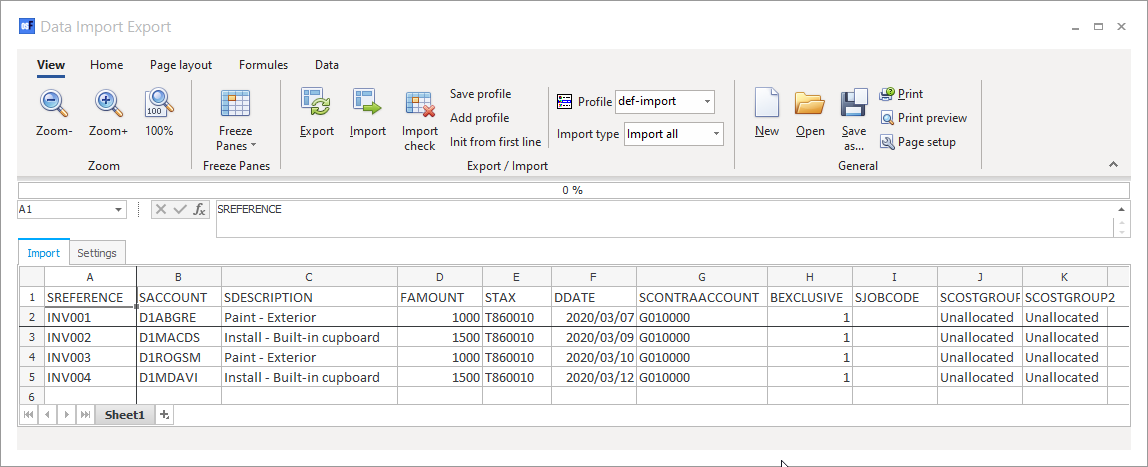
- Click on the Import check icon. This will populate the field names.
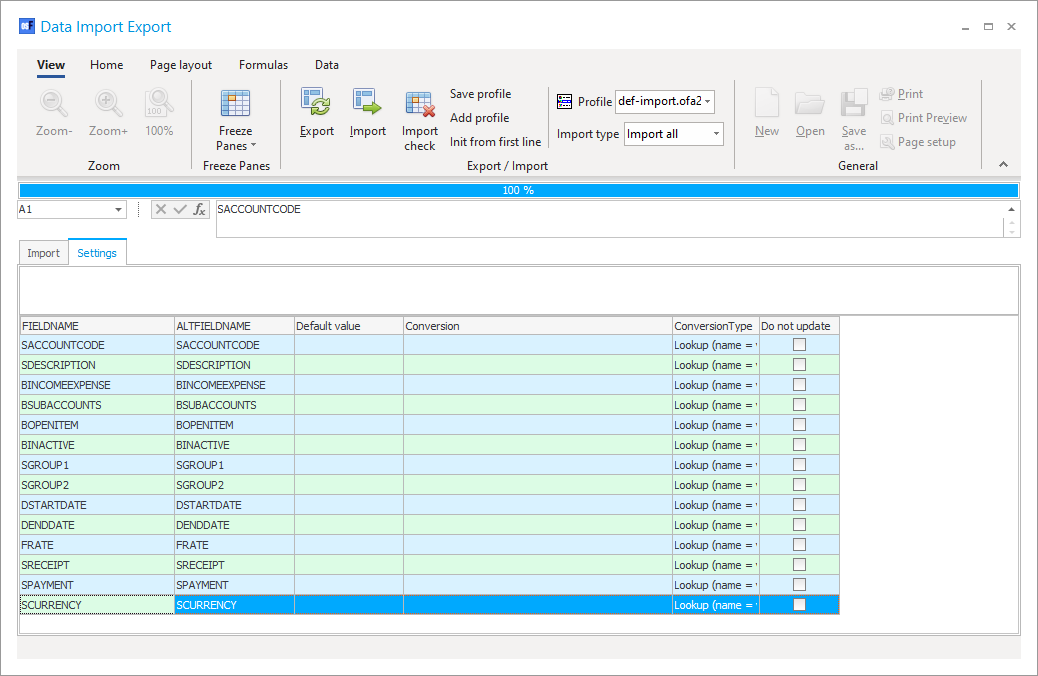
- You may select which fields not to update, use profile files and select the Import type (i.e. Import all, Just new, or Just existing records).
The data of the imported accounts are imported (populated) in the following eleven (11) columns in the spreadsheet and is as follows:
|
|
|
Field name |
Values |
Comments |
|
|
A |
SREFERENCE |
Alpha-numeric |
Reference entered |
|
|
B |
SACCOUNT |
Account code - Prefixed by: G = Ledger account D = Debtor account C = Creditor account B = Bank account |
Selected account - Account lookup |
|
|
C |
SDESCRIPTION |
Description |
Description entered for the transaction |
|
|
D |
FAMOUNT |
Amount |
Amount entered - Exclusive of Tax |
|
|
E |
STAX |
Tax account code (should be pre-fixed by T) |
Selected tax account - Tax lookup |
|
|
F |
DDATE |
Date |
Date of the transaction |
|
|
G |
SCONTRAACCOUNT |
Account code - Prefixed by: G = Ledger account D = Debtor account C = Creditor account B = Bank account |
Account code selected / set in F10:Setup (for balancing entries) |
|
|
H |
BEXCLUSIVE |
0 = Inclusive 1 = Exclusive |
Tax Amount entered Inclusive of Tax or Exclusive of Tax |
|
|
I |
SJOBCODE |
Project code |
Projects (if activated and selected) |
|
|
J |
SCOSTGROUP1 |
Cost centre 1 name |
Cost centre 1 group (if activated and selected) |
|
|
K |
SCOSTGROUP2 |
Cost centre 2 name |
Cost centre 2 group (if activated and selected) |
