
Import General ledger accounts
This option will allow you to import data for Account records from a valid file format into an existing Set of Books. To be able to import the data for Account records, you need to have created a valid XML Database file, TXF TurboCASH Data Exchange file, Lotus Spreadsheet file on your system in the Tools → Export menu.
To import accounts into TurboCASH:
1.Select the Tools → Import menu. The "Import Data into TurboCASH" screen is displayed:
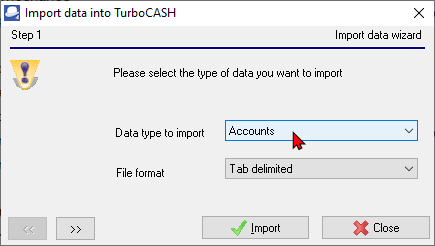
2.Select "Accounts" as the Data type to import, if not already displayed.
3.Select one of the following file types in which the data to import, is saved on your system:
a)TurboCASH Exchange File (*.TXF)
b)XML Database File (*.XML)
c)Lotus Spreadsheet File (*.WK1)
4.Click on the  button to locate the data file. The following screen is displayed:
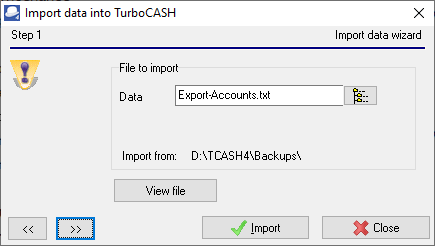
5.Click on the  button to locate the data file.
|
|
You may click on the View file button to open the file in the default program on your System which is associated with the selected file type. |

6.Click on the button. The following screen is displayed:

7.Click on the Import button. The Import Check screen is displayed: 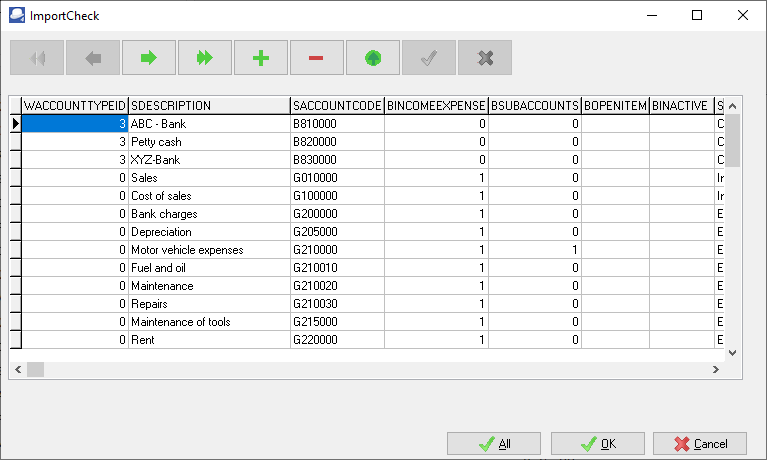
|
|
If you have clicked on the All button, the Import Check screens for debtor (customer / client) and creditor (supplier / vendor) accounts may be listed. You may edit these and Import the data for the accounts. If you click on the Cancel button of these ImportCheck screens, no data will be imported. ImportCheck for debtor (customer / client) accounts:
ImportCheck for creditor (supplier / vendor) accounts:
|

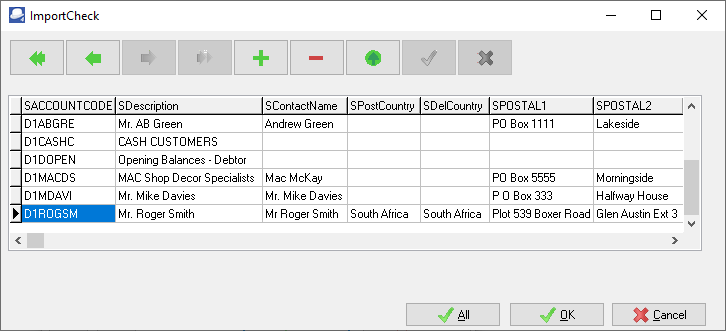
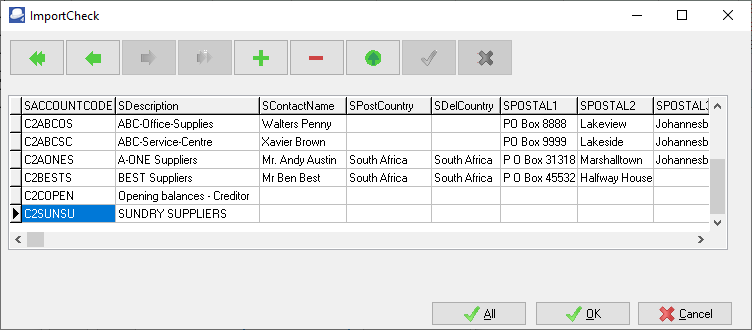
8.You may use the record buttons to add, delete or change the accounts on the ImportCheck screen. You may then click on the All or OK buttons to import the accounts.
9.Once the import process is finished an information message "Data file import completed!" will be displayed. Click on the OK button.
10.Select the Reports → Ledger → Listing menu, to check that the ledger accounts are correct.
11.If you need to edit the ledger accounts, go to the Edit → Accounts menu.
|
|
The values of the data in the Import Check screen, listing the general ledger accounts, is as follows: •AccountTypeID - Account type - 0=General ledger, 3=Bank accounts and 4=Tax accounts •SDescription - Account description (Name) •SAccountCode - Account number (Code) •BIncomeExpense - 1=Income / Expenses, 2=General ledger (Tax and Bank accounts is by default a Balance sheet Account) •BSubAccounts - 1=Sub-accounts, 0=No Sub-accounts •SGroup1 - Account group 1 Description •SGroup2 - Account group 2 Description •DStartDate - Start Date - (only applicable to Account type 4 only (i.e. Tax accounts)) •DEndDate - End Date - (only applicable to Account type 4 only (i.e. Tax accounts)) •FRate - Tax Rate (Percentage) - (only applicable to Account type 4 only (i.e. Tax accounts)) •SReceipt - Receipts journal - (only applicable to Account type 3 only (i.e. Bank accounts)) •SPayment - Payments journal - (only applicable to Account type 3 only (i.e. Bank accounts)) •SCurrency - Currency (Not used). |