
Import Debtor accounts
This option will allow you to import data for debtor (customer / client) records from a valid file format into an existing Set of Books. To be able to import the data for debtor (customer / client) records, you need to have created a valid XML Database file, TXF TurboCASH Data Exchange file, Lotus Spreadsheet file on your system in Tools → Export.
|
|
The *.TXF TurboCASH Exchange File format is not implemented. An information message will display "Import file format not implemented!", when exporting accounts. |

To import Debtor (customer / client) accounts:
1.Select Tools → Import. The "Import Data into TurboCASH" screen is displayed:
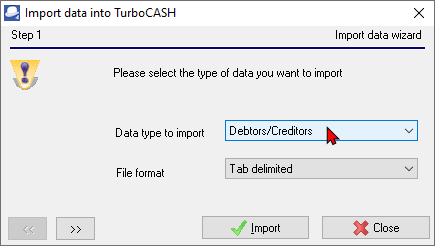
2.Select "Debtors/Creditors" as the Data type to import, if not already displayed.
3.Select one of the following file types in which the data to import, is saved on your system:
a)Comma Separated Value (*.CSV)
b)XML Database File (*.XML)
c)Lotus Spreadsheet File (*.WK1)
d)Tab delimited (*.TXT)
4.Click on the  button to locate the data file. The following screen is displayed:

5.Click on the  button to locate the data file.
|
|
You may click on the View file button to open the file in the default program on your System which is associated with the selected file type. |

6.Click on the button. The following screen is displayed:

7.Click on the Import button. The Import Check screen is displayed: 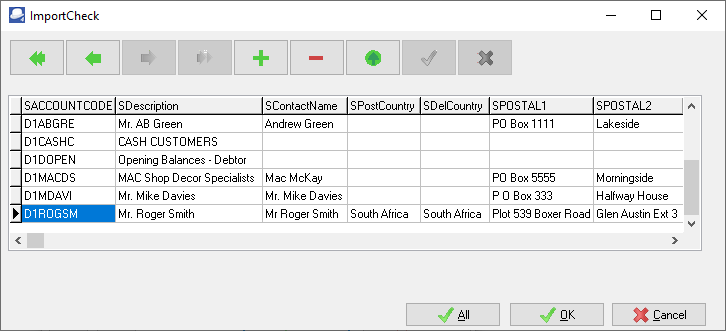
8.You may use the record buttons to add, delete or change the debtor (customer / client) accounts on the ImportCheck screen. You may then click on the All or OK buttons to import the debtor (customer / client) accounts.
9.Once the import process is finished an information message "Data file import completed!" will be displayed. Click on the OK button.
10.Select the Reports → Debtors → Listing menu, to check that the debtor (customer / client) accounts are correct.
11.If you need to edit the debtor (customer / client) accounts, go to Edit → Debtors.