Accounting Made Easy
Download

You can get TurboCASH 4 Free
You get Turb0CASH 4.969 as a free download.
We would be putz's if we did not make our Subscriber version a better deal than the free version.
Business Class
For $6 per month or $60 per year, you get TurboCASH 5.2.408 plus a free Accounting Made Easy Manual
Take this if you are serious about business
Download the free Version. No catches.
Free is even useful to paid subscribers
You can distribute the free version to related parties that can read your data.
Free version is ideal for students and those with absolutely no capital.
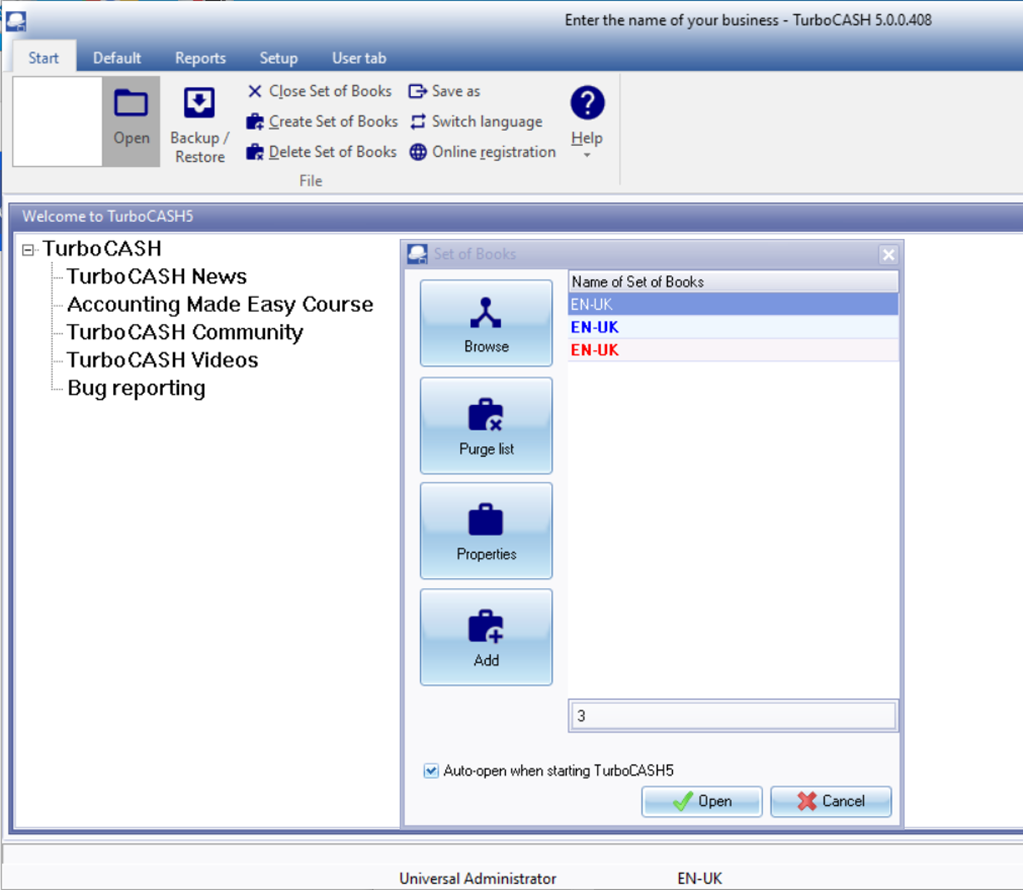
Installation
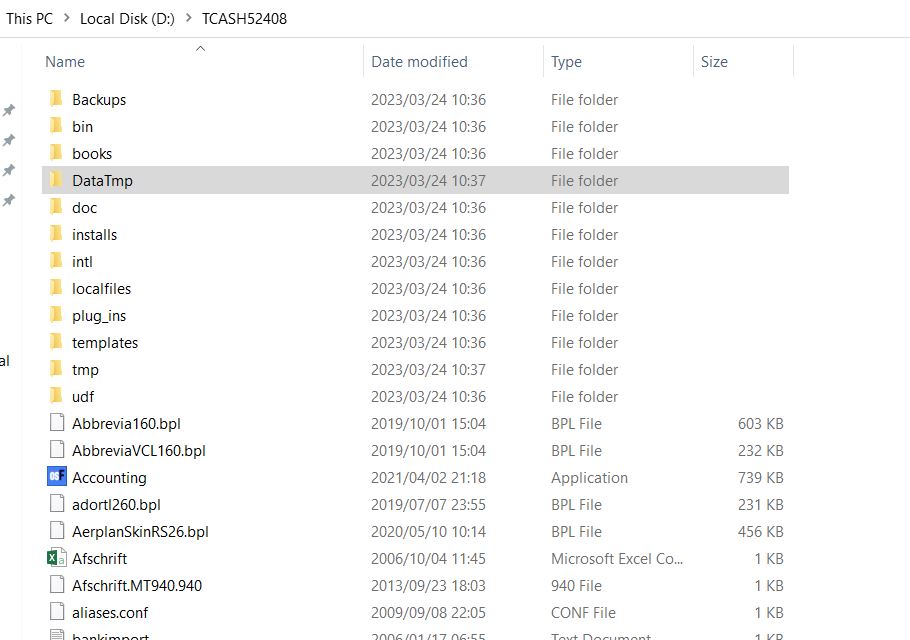
Installed Directories
If you have completed the intallation you should get a directory structure that includes: Bin with examples, tutorial and language files. Books where your accounting data will be kept.
Important note:
TurboCASH 5.3 is NOT an upgrade. Install to a new directory to avoid overwriting and corrupting your legacy installation.More
Avoid "Programs Files Directory"
Once you have downloaded your install file (200Mb). Simply Click on the defaults and TurboCASH will install to the default directory c:\TCASHX
 Don't install in c:\Program Files
There are read/write restrictions
Don't install in c:\Program Files
There are read/write restrictions

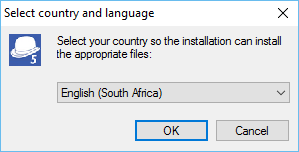
Country
Change this to your country. US users should definitely change. Others are optional. This tell TurboCASH installation what to install for your country. Default will be the UK.
More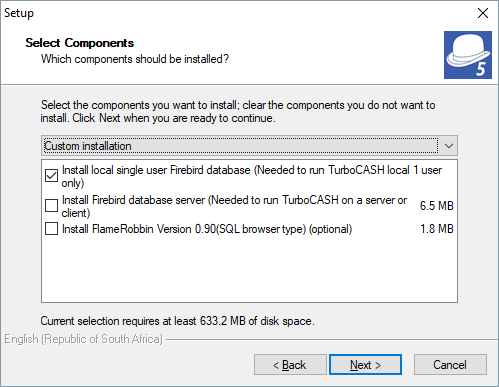
Firebird
Firebird is the SQL Database that manages the TurboCASH Data. Once TurboCASH is installed you must install Firebird.
Flame Robin is optional
Free Help

How to get help
If you write good software, then it just "works". However, Accounting is a complicated subject and things are not always obvious. There are a number of ways to get free help on TurboCASH.
- Help Documentation
- Reddit Forum
- Chat GPT
This will keep getting better
Tutorials
Use the Help documentation on our web site. Comes as quick help or full tuturials. \tcash5\Bin contains tutorial examples. HANDYMAN-A is particularly useful for a quickstart. It has data loaded into batches ready to post.
Use the Reddit forum to post a question.
Google using the term "TurboCASH" in your search, e.g. TurboCASH Stock count, TurboCASH Year End etc.
Use Chat GPT. It is a developing AI resource and will rapidly get better over the next few months.
More to come..

Example of AI
Those of you that have been with me a long time may remember "Sniper" a natural language translator that I published from Pink Software in the nineties. We developed on a single 2 Mb PC. State of the art in those days. While it was not successful it did lay down a culture for me of publishing in multiple languages. Fast forward 30 years and modern LLMs (Large Language Models) are now developed using 200 parrallel processors, managing terra bytes of data. It won't be long before an online accountant will be there to help you every step of the way.
I do urge you to embrace this new technology and use AI to help with TurboCASH. This is a soft landing approach to begin using this awesome technology.
This will keep getting better
Philip :
starting turbocash - I have downloaded and installed TurboCASH Accounting. what do I do next?
Chat GPT :
Launch TurboCASH: Locate the TurboCASH program on your computer and launch it.
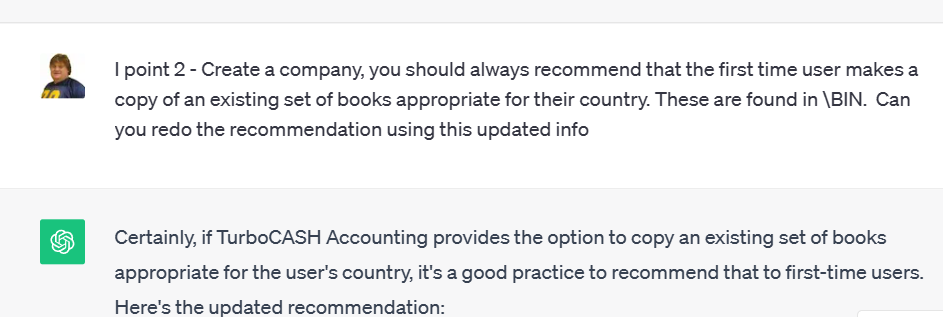
Create a Company: The first time you run TurboCASH, it may offer the option to create a new company or copy an existing set of books appropriate for your country. If available, it's recommended to select "Copy an existing set of books" and choose the template that matches the accounting standards and regulations relevant to your country. These templates can usually be found in the "\BIN" folder of the TurboCASH installation directory.
Set Up Company Details: You will still need to enter information about your company, such as its name, address, and financial year. Make sure to fill in all the necessary details accurately.
Set Up Opening Balances: Enter the opening balances for your accounts. These balances represent the financial position of your company at the start of your accounting records. This may include bank balances, outstanding invoices, and more.
Record Transactions: Start recording your business transactions. TurboCASH provides tools to enter sales, purchases, expenses, and other financial transactions. Make sure to categorize each transaction correctly based on your chart of accounts.
Bank Reconciliation: Reconcile your bank accounts regularly to ensure your records match your actual bank statements. TurboCASH offers features to help you with this process.
Generate Reports: TurboCASH offers a range of financial reports, including income statements, balance sheets, cash flow statements, and more. Use these reports to track your business's financial performance.
Backup Your Data: Regularly backup your TurboCASH data to prevent loss in case of computer issues or data corruption.
Learn and Explore: TurboCASH has various features and capabilities, so take the time to explore the software and its functionalities. You may want to refer to the user manual or online documentation for guidance on specific tasks.
Support and Updates: Stay informed about software updates and seek support from the TurboCASH community or forums if you encounter any issues or have questions.
If self help is too much for you and you need professional service. take out a Business Class Subscription and if need be, buy a support ticket.