T-Account viewer


The T-Account viewer may be launched (for specific transactions or periods) from the T-Ledger analyzer 1 or T-Ledger analyzer 2 options on the Reports ribbon (right-click or double-click on specific accounts or groups).
In addition to this, the T-Account viewer may also be launched separately on the Reports ribbon or from the following options:
1.Action → Search - Investigator - Account or Journal type searched items.
2.Action → Customer /Vendor - Transactions tab - Click on the Show transactions button.
To access the T-Account viewer:
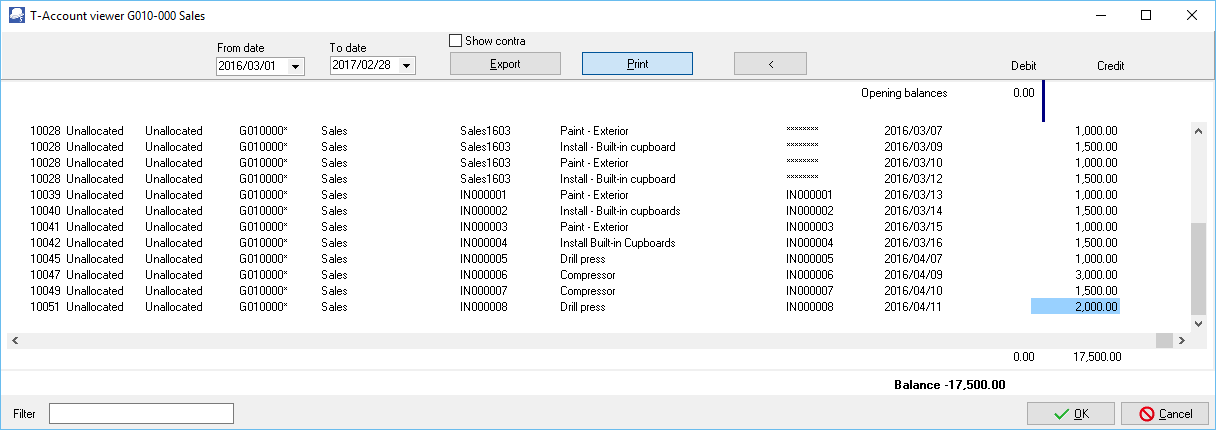
1.On the Reports ribbon, select T-Account viewer. The T-Account viewer screen is displayed:
2.Select the following options:
a)Account - Select the Account on the Lookup (if launched from the
b)From date and To date - Enter or select the dates on the date picker. For example, if the Sales account is selected, it will display as follows:
|
Each time you access the T-Account viewer from the T-Ledger analyzer, it will create a shortcut button (numerical). You may then click on any of the 1, 2, 3, 4, 5 buttons, etc. to view your previous T-Account viewer selections. These shortcuts will only be cleared if you: •Close and re-open the Set of Books •Close active forms (Setup → Tools) |
3.The From Date and To Date fields will automatically be filled in with the date selected on the T-Ledger analyzer Report options. It will only include transactions for these dates. You may enter or select any other dates, if necessary.
|
If you have selected the Column balances report types, and you click on the period columns, the dates for the selected period column will automatically be selected. |
4.You may also use the following options to get specific views of transactions:
a)Journal number (e.g. 10014 automatically generated). This will list only the transactions for a specific journal.
b)Account code (e.g. B810000 Current Bank account, G610010 Furniture and Fittings @ Cost, G210010 Fuel & Oil, G720000 Petty cash, G220000 Rent, G225000 Salaries and Wages, T850020 Input Tax Standard Rate, T850030 Input Tax Capital Goods). This will list the transactions for a specific account.
c)Date – This will list the transactions for a specific date. If you double-click on a date, the From date and To date will be changed to the selected date.
5.Once finished, click on the Close button to exit (close) the T-Account viewer screen.
|
The T-Account viewer may also be accessed from the Search (Action ribbon). - Once an account is listed, and selected, double-click on it. |
|
If the T-Account viewer is accessed from the Reports ribbon, you may select an account on the Accounts lookup. |
Created with the Personal Edition of HelpNDoc: Free EPub producer
