
Stock list screen - Single line mode
By default, the "Single line mode" option is selected (ticked). The details for each of the stock items in the list will display in a single line. If this option is selected, a blue column header "Use your mouse to pull a column here to group on that column" will be displayed and the similar data in columns can be grouped.
Single line mode selected
The details for each of the stock items in the list will display in a single line.
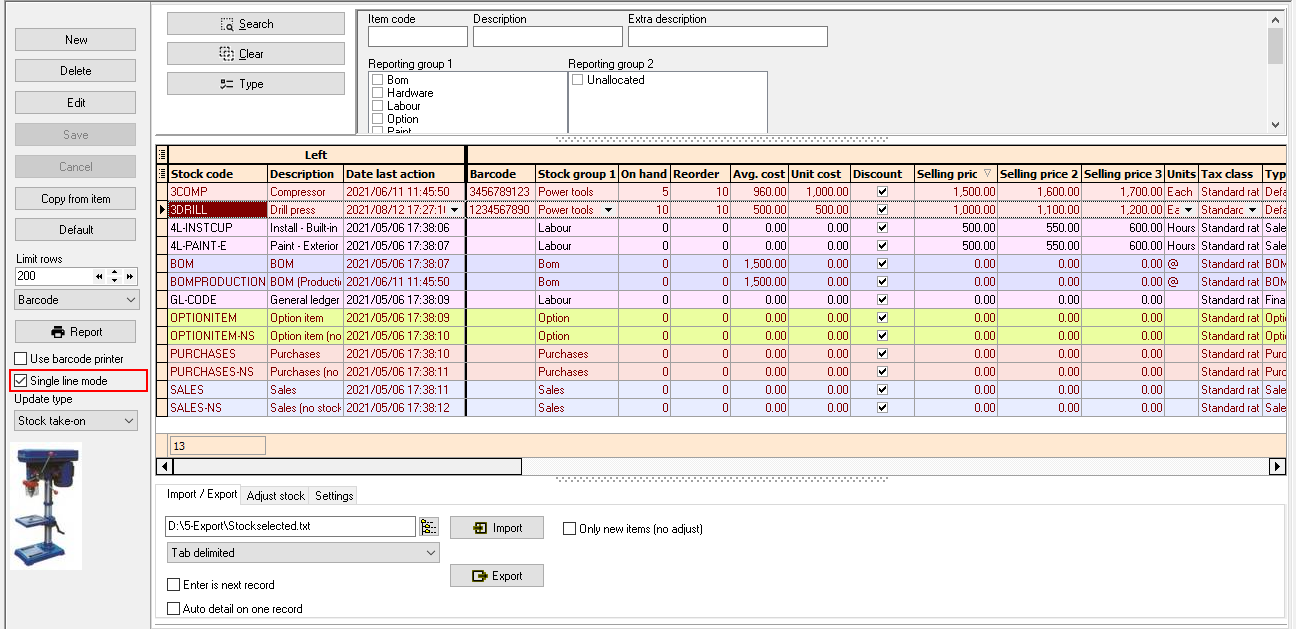
|
|
If the "Advanced mode" is not selected, the "Description" column will be listed in the Data band. |

|
|
If the "Single line mode" is selected, the data in the columns is listed on two (2) bands (Left band and Data band)". The Right band will only be activated in the "Advanced mode". |
Single line mode not selected
If the "Single line mode" option is not selected a blue column header "Use your mouse to pull a column here to group on that column" will be displayed and the similar data in columns will be grouped.
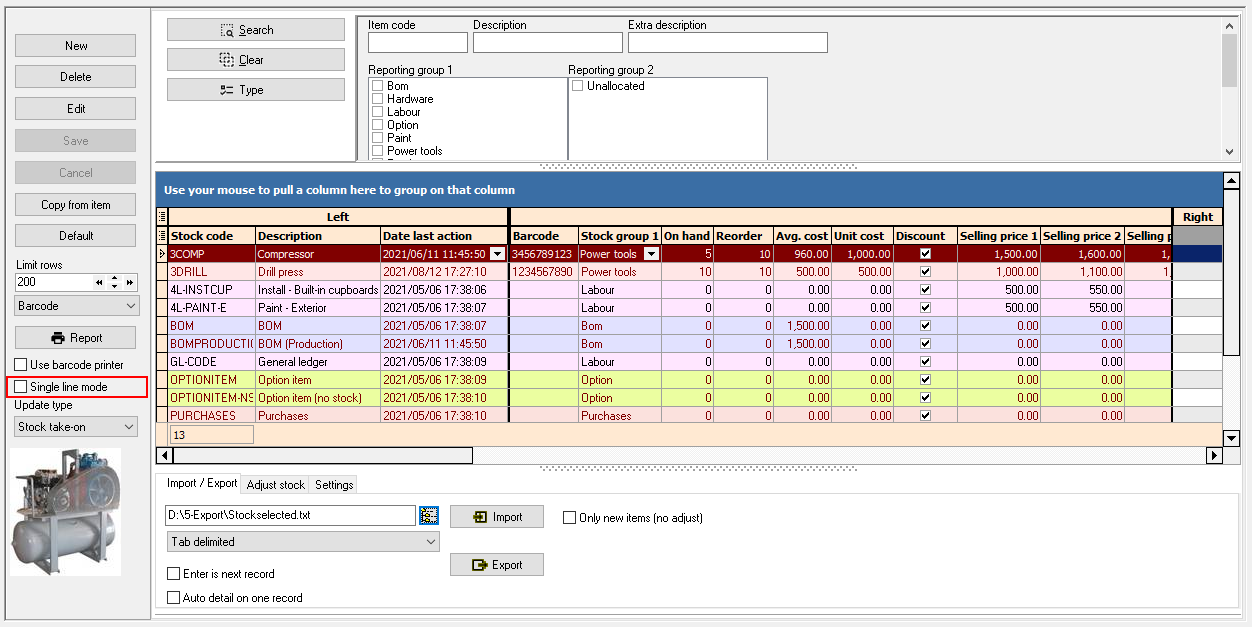
|
|
If the "Advanced mode" is not selected, the Description" column will be listed in the Data band. |
|
|
The column headings are grouped into three (3) bands:
|
