
Install Updates - Go back to osFinancials4
osFinancials 5 Business
After years of development and support of osFinancials and TurboCASH we came to the conclusion the current model does not work. To break true this glass ceiling we are introducing "osFinancials 5 Business".
osFinancials 4 is free to use but if you want more out of your software then "osFinancials 5 Business" is the version you want to use.
If you have less then 500 transactions / documents you can use this version free of charge. Above that we ask you for a contribution of 50 euro (excl.)/ 60 dollars per year.
If you have any subscription already like multi-user or retail POS, etc., the licence will also be included.
Once osFinancials5 (or TurboCASH5.2) is installed on your system, Update to osFinancials5 (or TurboCASH5.2) is released from time to time. These updates of osFinancials5, contain certain bugfixes, etc.
If you wish to revert back to the osFinancials 4 (the free to use version of osFinancials), you may use the Update option.
The Update option will list all the installation files available for download. By default, the Update will be launched when starting osFinancials. To disable the check for update at start, select this field and remove the tick.
|
|
It is important to make a backups of your Set of Books. It is strongly recommended that you make a backup copy of the entire folder of your existing installation before proceeding with the update. |

The Updates option may manually be launched from Help → Update (Start ribbon).
To downgrade to osFinancials 4:
Launch the Updates.
Select osFinancials 4.0.0.1093
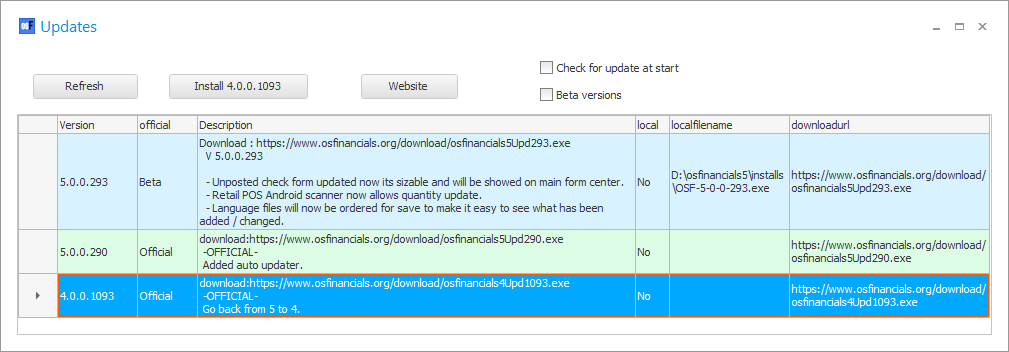
You may select to install the Official versions or Beta versions.
Click on the Install 4.0.0.1093 button. The following confirmation message is displayed:
"This action will close osFinancials and install version 4.0.0.1093 we recommend you make a backup of the whole folder of osFinancials.
Do you wish to continue?"
If you wish to proceed, tick the option "I have read this instruction and understand the action!". The Yes and No buttons will be activated.
If you click on the Yes button (of the confirmation screen), the following process will start:
- Download the install file for the selected version and text file with the change log and store it in the ".../installs", e.g. "D:\osfinancials5\installs" folder of your current osFinancials installation.
- Automatically install the osFinancials 4 and close the current osFinancials session.
|
|
If there are any other osFinancials installation files in the ".../installs", e.g. "D:\osfinancials5\installs" folder of your current osFinancials installation, the installation process will not start. You may then select the osFinancials 4 file and install it manually. |

Once the installation is finished, you may launch  from your system.
Note the selected version of osFinancials will be displayed in the title-bar of the selected version of osFinancials.