
Export / Import - Stock items
This option will allow you to Export your stock code file into an Excel spreadsheet. You may then add new stock items, edit existing stock items and import it back into your stock code file.
To export and import stock items:
- On the Setup ribbon, select Import. The "Import Data into TurboCASH5.2" screen is displayed:
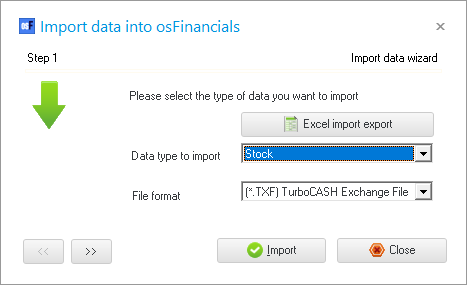
- Click on the Excel import export button. The Excel spreadsheet will be displayed with the column headings for the Stock items (without any data).
- Click on the Export icon. The data from your stock code file will be imported (populated) into the spreadsheet.
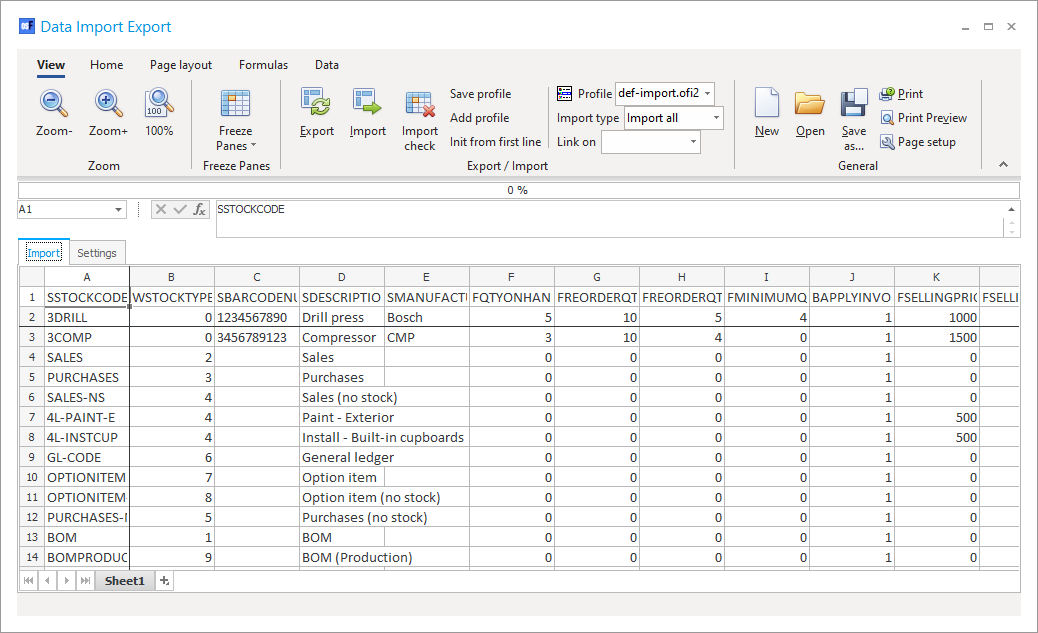
- You may add new stock items, edit the stock items, change the quantities, selling prices, whatever field, is necessary.
- Once you are done, check the following options:
- Import check
- Profile
- Click on the Import button. The Import Check screen is displayed:
- You may use the record buttons to add, delete or change the stock records on the ImportCheck screen. You may then click on the All or OK buttons to import the stock file.
- Once the import process is finished an information message "Data file import completed!" will be displayed. Click on the OK button.
- Go to the Reports ribbon and select Reports → Stock items → Stock item listing to check the stock items.
- Go to the Default ribbon and select Stock items to edit the stock items, if necessary.
The data of the debtor (customer / client) accounts and creditor (supplier / vendor) accounts are imported (populated) in forty-six (46) columns in the spreadsheet, and is as follows:
|
|
|
Field name |
Values |
Comments |
|
|
A |
SSTOCKCODE |
Alpha-numeric (15-digits) |
Stock item code |
|
|
B |
WSTOCKTYPEID |
Numeric |
11 - Stock item types 0 = Default (trading stock) 1 = BOM 2 = Sales 3 = Purchases 4 = Sales (no stock) 5 = Purchases (no stock) 6 = Financial entry 7 = Option item 8 = Option item (no stock) 9 = BOM (Production) 10 = Linked item (linked sale) |
|
|
C |
SBARCODENUMBER |
Alpha-numeric |
Barcode number |
|
|
D |
SDESCRIPTION |
Alpha-numeric |
Name or description of stock item |
|
|
E |
SMANUFACTURER |
Alpha-numeric |
Name or description of manufacturer |
|
|
F |
FQTYONHAND |
Numeric |
Name or description of contact |
|
|
G |
FREORDERQTY |
Numeric |
Quantity re-order |
|
|
H |
FREORDERQTYTRIG |
Alpha-numeric |
Quantity re-order warning |
|
|
I |
FMINIMUMQTY |
Alpha-numeric |
Quantity re-order minimum |
|
|
J |
BAPPLYINVOICEDISCOUNT |
Alpha-numeric |
Apply invoice discount: 0 = No 1= Yes |
|
|
K |
FSELLINGPRICE1 |
Numeric (amount) |
Selling price 1 amount |
|
|
L |
FSELLINGPRICE2 |
Numeric (amount) |
Selling price 2 amount |
|
|
M |
FSELLINGPRICE3 |
Numeric (amount) |
Selling price 3 amount |
|
|
N |
FUNITAVECOST |
Numeric (amount) |
Average unit cost |
|
|
O |
FUNITCOST |
Numeric (amount) |
Unit cost |
|
|
P |
FNETTOWEIGHT |
Numeric (number) |
Nett weight |
|
|
Q |
FGROSSWEIGHT |
Alpha-numeric |
Gross weight |
|
|
R |
SEXTRADESC |
Alpha-numeric |
Extra description for stock item |
|
|
S |
SEXTERNALID |
Alpha-numeric |
External id |
|
|
T |
BDISABLED |
Alpha-numeric |
Stock item Disabled: 0 = No 1= Yes |
|
|
U |
SSTOCKCODESUP1 |
Numeric |
Supplier 1 Stock code |
|
|
V |
SSTOCKCODESUP2 |
Numeric |
Supplier 2 Stock code |
|
|
W |
SUNIT |
Numeric |
Unit description |
|
|
X |
SGROUP1 |
Alpha-numeric |
Stock item group 1 |
|
|
Y |
SGROUP2 |
Alpha-numeric |
Stock item group 2 |
|
|
Z |
SCOSTACCOUNT |
Alpha-numeric |
Cost of sales account code |
|
|
AA |
SSALESACCOUNT |
Alpha-numeric |
Sales account code |
|
|
AB |
SSTOCKACCOUNT |
Numeric |
Stock control account code |
|
|
AC |
SINPUTTAX |
Date |
Input tax code T- |
|
|
AD |
STAXCLASS |
Alpha-numeric |
Tax class description |
|
|
AE |
SOUTPUTTAX |
Alpha-numeric |
Output tax code T- |
|
|
AF |
SSUPPLIER1 |
Alpha-numeric |
|
|
|
AG |
SSUPPLIER2 |
Alpha-numeric |
|
|
|
AH |
OPTION |
Alpha-numeric |
|

|
|
The information for the Stock items, which will be exported, is:
|