
Creditor accounts - Transactions tab
Any transactions which have been processed for that creditor (supplier / vendor) account will be listed:
- Batch (Journal) transactions which have been updated (posted) to the ledger.
- Document transactions (i.e. Purchases and Supplier returns) which have been updated (posted) to the ledger.
|
|
To maximise the Transactions tab and / or Debit / Credit transactions section of the screen, click on the |


All selected - All transactions listed. Those transactions which are fully linked or settled, will display an 0.00 amount in the Outstanding column:

|
|
All - By default, this option is not selected. If a creditor account is set to Open item account (Accounting information tab) only the transactions which are not linked (matched) in the Open item feature (i.e. amounts in the Outstanding column smaller or larger than 0.00), will be listed. All - If you select this option, all the transactions which are linked (matched) in the Open item feature (i.e. amounts in the Outstanding column = 0.00), will be listed. |
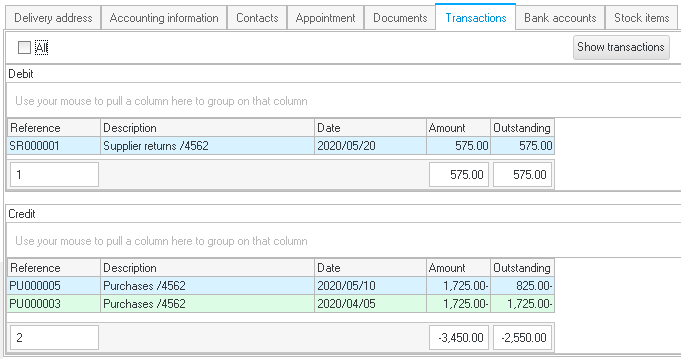
All not selected - Only those with outstanding amounts will be listed:
|
|
Before sending remittance advises to your creditors (suppliers) , it is recommended that any amounts in the debit section be linked to any outstanding invoices or credit transactions. |

It will list transactions as follows:
- Debit - Documents (i.e. Supplier returns), Purchase returns journal, Payments journal, Opening Balances take-on, etc. It will list any transactions, for which amounts are entered in the Debit column of batches.
- Credit - Documents (i.e. Purchases), Purchase journal, Generate multiple transactions (Creditors with charge amount), Opening Balances take-on, etc. It will list any transactions, for which amounts are entered in the Credit column of batches.
|
|
You may click on the column headings (i.e. Reference, Description, Date, Amount or Outstanding) to change the sort sequence from the ascending to the descending sequence. You may also click and drag any of the column headings to the left or right to change the sequence in which the columns are to be displayed. |
View Transactions - Show Transaction button
- Click on the Show transactions button.
- Enter or select a start date and an end date, if necessary. Click on the Print button to print the transactions, if required.

|
|
You may double-click on a selected batch number to view only the transactions for the selected document. For example, if you need to view and print the transactions for Supplier return "SR000001" only, double-click on the batch number "10060" |
You may also click on the Export button to export the transactions.

View a specific selected batch transaction (e.g. Supplier return "SR000001" (batch number "10060)

View Transactions - Show transact context menu
- Select a transaction and click on the Show transactions context menu.
- On the "Transactions" screen, click on the Print button.
|
|
The Documents tab lists all posted and unposted documents and orders. The Show transactions context menu option will not do anything, if an order or an unposted document is selected. |

The Amount exclusive values are as follows:
- 0 = Amount exclusive
- 1 = Amount inclusive
