
Create / Add events (Appointments)
Schedule or create events or appointments
You may schedule or add any of the following categories of events: 
- Appointment (general - i.e. with bank manager, lunches, etc.).
- Repeating invoices - schedule when you need to copy / process repeating invoices.
- Debtors appointment - schedule up to six (6) categories of appointments with debtors (customers / clients). You may also create invoices for these debtor appointments.
- Creditors appointment - schedule appointments with creditors (suppliers).
|
|
Colour coding also makes it easier to identify the category of the event, when displayed in the Calendar. |

To add (create) events or appointments:
- Select a suitable time on the day-time view of the agenda and right-click. The following context menu is displayed:
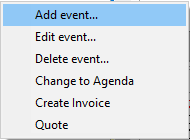
- Add event - Add / create a new event.
- Edit event - Edit a selected event.
- Delete event - Delete a selected event.
- Change to Agenda -
|
|
Multi-User calendar (agenda) - Manual - Shop - Once-off license - This plugin adds the multi-user agenda (multiple agendas) to the Calendar (Planner). You can add agendas and link them as default to the current user. For every agenda a tab will appear in the agenda Calendar so you can see what the appointments, etc. are on other agendas. You can have a agenda for each employee, salesperson, user, etc. and create invoices directly from his / her agenda with a simple click. Each agenda has it's own calendar and task list. |
- Create invoice - Create an invoice for a selected debtor (customer / client) account.
- Create quote - Create a quote for a selected debtor (customer / client) account.
- To create a new event, select the "Add event" option. The "Untitled - Event" screen is displayed:
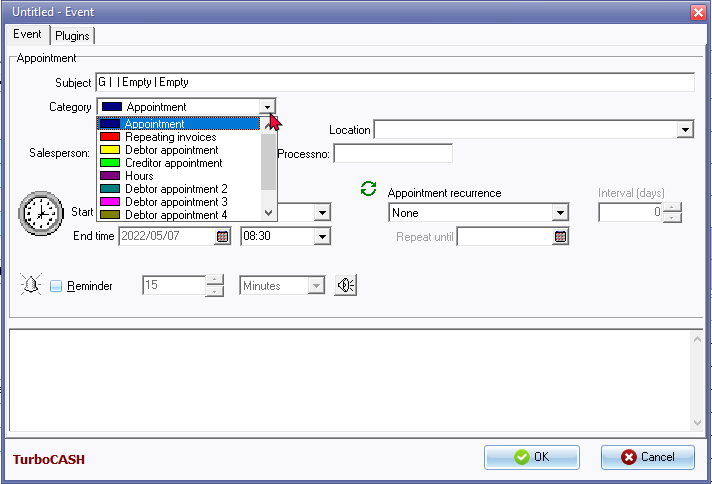
- Enter the subject (topic) of the appointment.
- Select the category (i.e. Appointment, Repeating invoices, Debtors appointment (up to six (6) categories) or Creditors appointment).
- Set the "Start time" and "End time" for the appointment. The selected time, when the "Add event" option was launched, will be displayed.
|
|
If you wish to mark this event as an all day event, select the "All day event" option. You are then not able to set the start and the end date. |
- Select the appointment recurrence (i.e. "None" (default), "Daily, Weekly, Monthly by day, Monthly by date, Yearly by day, Yearly by date" or "Custom").
|
|
If "Custom" is selected, you may set the interval in the number of days. |
|
|
If the Recurrence is set to any other value than "None", the Repeat until date will be displayed for one calendar year, e.g. 07/05/2020 if the start date is 07/05/2021. You may then select a date until, which the event or appointment is to be repeated. |
- Select the Reminder option if you need to be reminded of the event or appointment.
|
|
This will remind you of a scheduled event or task well in advance (from any number of minutes, hours and even days) until the event or appointment is deleted. |
- Enter any additional information or notes about the appointment. This will also be displayed when you edit the event or when the Reminder is displayed.
- Click on the OK button to save the event or appointment.