
Copy from a Stock item
This option will open a Stock screen with the necessary data from a selected Stock item. Before you can create the new Stock item with the copied data, you need to at least enter a Stock code and Save it. You may enter and / or select the options for the blank fields, as necessary. If necessary you may also edit or change any of the copied data.
|
|
The data that will be copied from a selected Stock item, may depend on the on the Stock item type. |

To create a new stock item - Copy from item:
- On the Default ribbon, select Stock items (F12). The Stock item - List view - Default screen will be displayed.
- Select the Stock item from the list.
|
|
You may right-click and select the Copy → Stock item from the context menu. |

- Make absolutely sure that it is the correct Stock item to be copied.
|
|
To view more details of the selected Stock item, you may:
|
- Click on the Copy from item button. The Stock item screen with basically all the data from the selected Stock item screen will be displayed as follows:
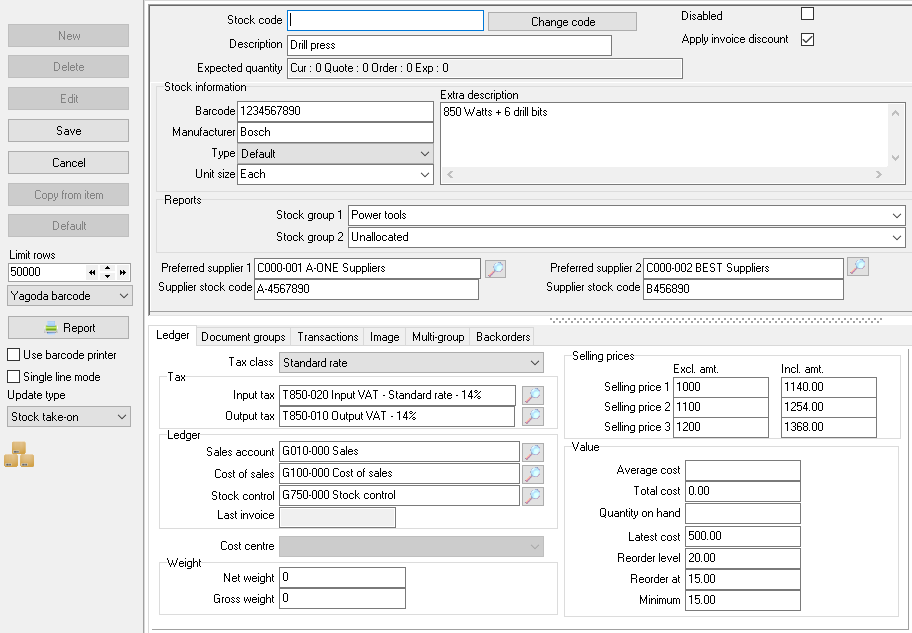
- Enter the new Stock code.
- Enter the necessary details in the fields, as required. You may also edit the copied data, where necessary.
- Click on the Save button to save this stock item. The Stock item - List view - Default screen will be displayed.
|
|
It copy the following fields :
|
|
|
What it does not copy:
|
