
Batch entry - Context menu - Edit accounts
Edit accounts from the Batch entry screen
If you have selected a debtor (customer / client) or a creditor (supplier / vendor) account in a batch, the details (i.e. Name, address will be displayed on the top of Batch entry screen which does not match the details on the source document, you may need to edit the account. You may also create a new account.
To do this, you need to:
- Right-click and select the Edit accounts option on the context menu. The "Account type" screen is displayed.
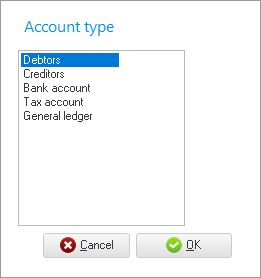
- Select the account type for which you need to edit an existing account or create a new account. The account types are as follows:
- Debtors - The Debtor accounts list screen, will be displayed on which you may use the search and filter options to locate a debtor (customer / client) account. If the account does not exist, you may click on the New button and create a new debtor (customer / client) account.
- Creditors - The Creditor accounts list screen, will be displayed on which you may use the search and filter options to locate a creditor (supplier / vendor) account. If the account does not exist, you may click on the New button and create a new creditor (supplier / vendor) account.
- Bank account, Tax account and General ledger account - The Accounts screen will be displayed. You may filter for that account and create the new account, if necessary.
- Select the debtor (customer / client) or a creditor (supplier / vendor) account and click on the Edit button of the "Debtor accounts" list screen or Creditor accounts list screen.
- Edit the account, as necessary and click on the OK or Save button of the Debtor account edit form or Creditor account edit form.
- Click on the Close button of the accounts screen.
- Reselect the account and the updated information will be displayed on the top of Batch entry screen.
Create new accounts from the Batch entry screen
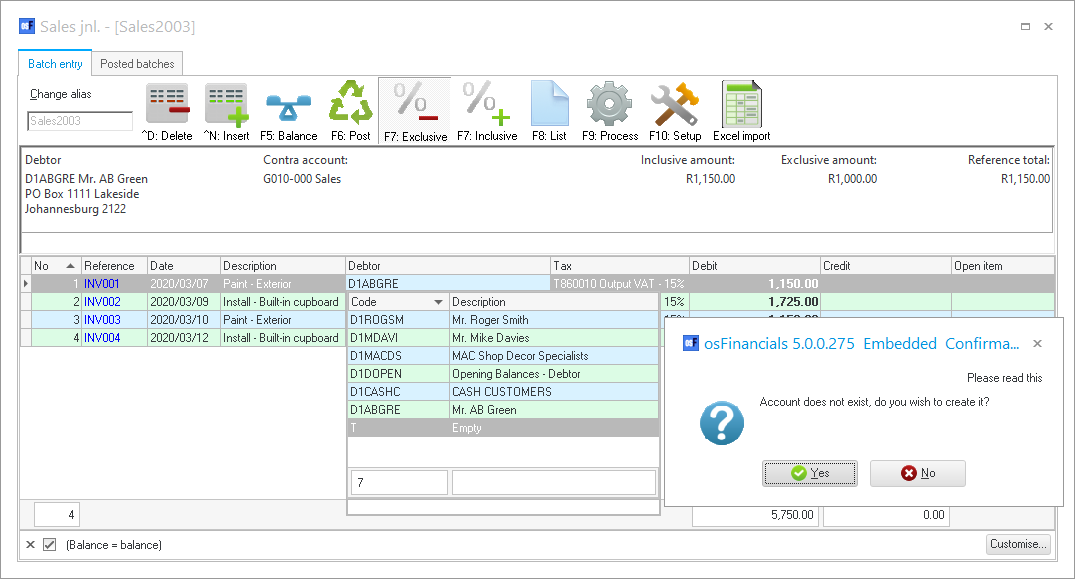
If you enter an invalid account code or account description in the standard filter options for the account lookup in the Accounts column for a transaction, a confirmation message "w Account does not exist, do you wish to create it?" (where "w" does not exist in the chart of accounts, debtor accounts or creditor accounts) will be displayed.
|
|
You may configure the Account types to be included in the lookup Account lookup. On the F10:Setup Advanced tab, you may set the Account lookup type to:
|
