
Add / Create contacts - Calendar
To add (create) a contact:
- Click on the Contacts icon (if the Contacts screen is not displayed).
- To create a new contact, simply right-click on any area of the Contacts screen. On the context menu, select the Add contact... option. The Untitled - Contact screen is displayed:
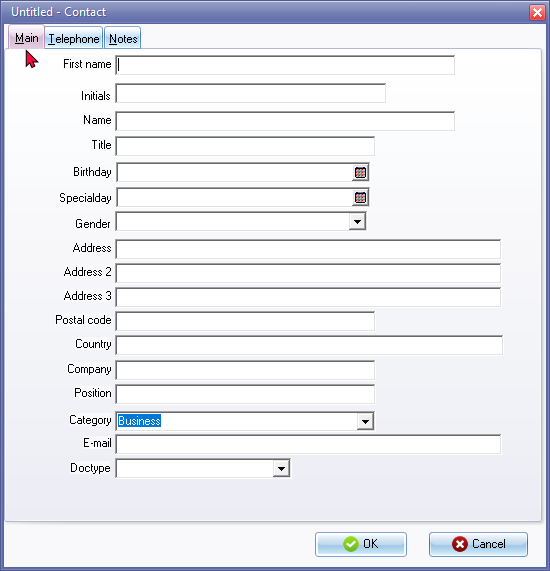
- Enter a Name for the contact. This Name will be displayed in the title bar, and on the Contact screen once this contact is saved.
- Enter the title, address, city, state zip / postal code, country, company, position, and select the category of the contact (business, clients, family, other or personal).
- Click on the Telephone tab. The following screen is displayed:
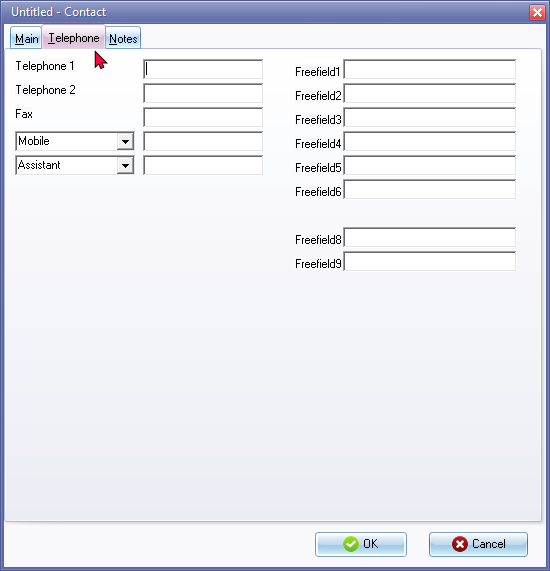
- Enter up to two telephone numbers, a fax number and an e-mail address, if available / applicable. You may also enter two additional fields for the following:
- Number for - select one of the following: Mobile, Other, (phone), Other Fax, Pager, Primary, Radio, Telex, TTY/TDD, Work or Work Fax, then enter the number for the selected option.
- Number for - select one of the following: Assistant (default), Call-back, Car, Company, Home, Home Fax, IDSN or Mobile, then enter the number for the selected option.
- Once finished entering the necessary details, click on the Notes tab, if you need to enter additional information for the contact.
- Click on the OK button.